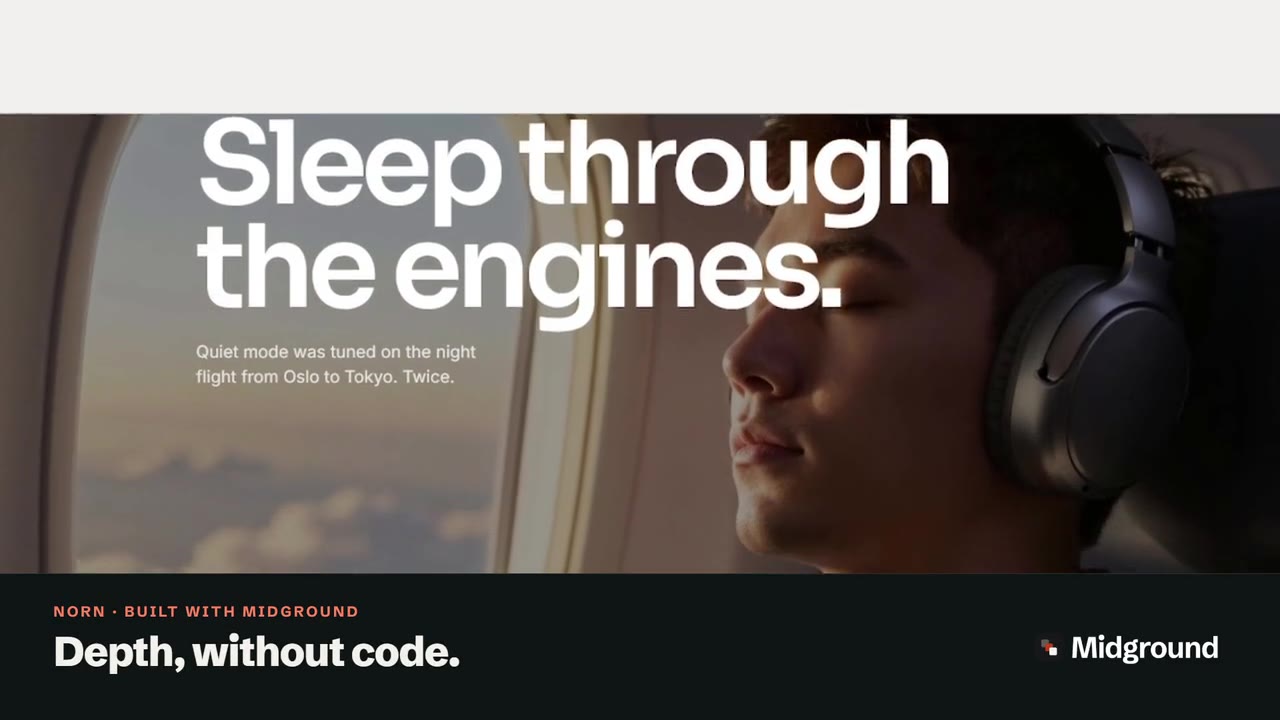
Step-by-step guide · 12 min read
Text reveal on scroll in WordPress: rise, fade or come into focus
A text reveal on scroll brings a heading in one word – or one letter – at a time as it scrolls into view. In Midground it’s an effect, not a special widget: select any heading or text, open Motion, pick one of four reveals and set the time between words. Search engines and screen readers still get the whole sentence.
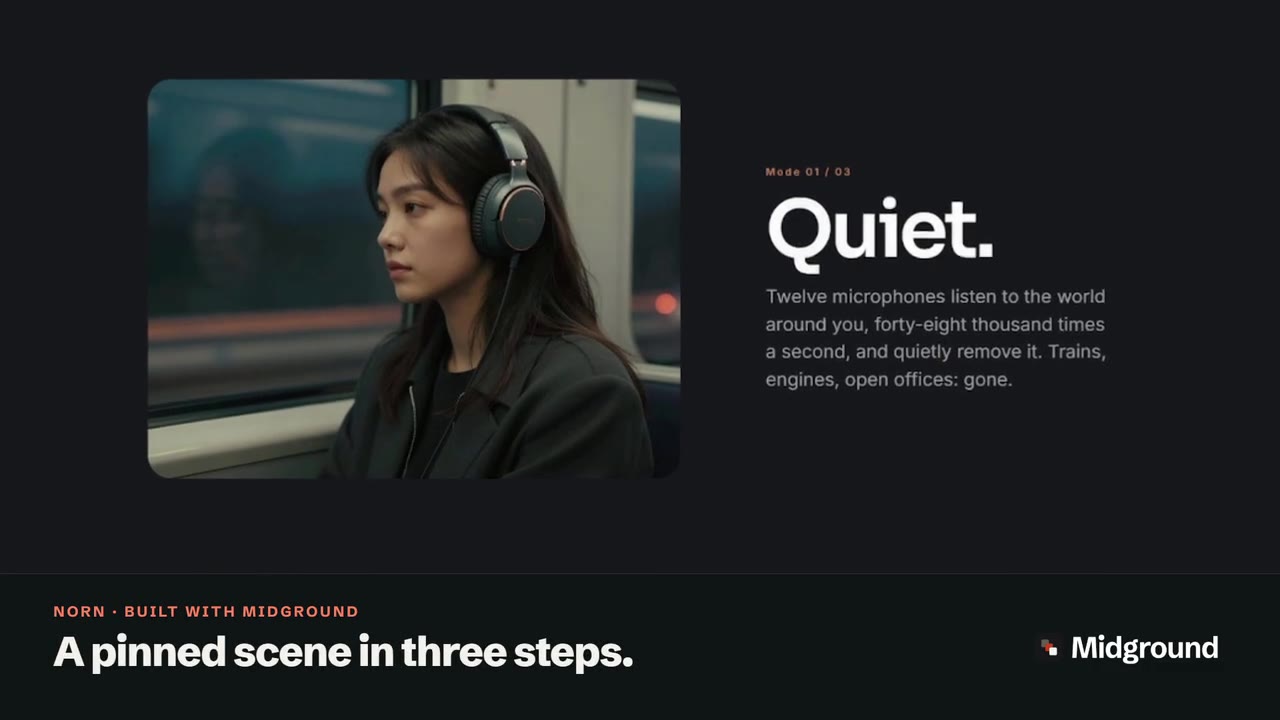
Twelve microphones listen to the world, so you don’t have to. Norn One removes up to 98 % of the noise around you – and keeps the music exactly as it was recorded.
Made to disappear.
This heading uses “Text: words rise in”. The sentence above uses “Text: words come into focus”.
Read the transcript
On screen: “Text that comes into focus as you read.” On a dark section of the Norn demo, the heading “Twelve microphones listen to the world, so you don’t have to…” sharpens from a blur, one word after another, as it scrolls into view. On screen: “Numbers count up as they arrive.” Below it, four key figures – 40 h, 98 %, 268 g and 5 min – count up to their final values.
What is a text reveal on scroll? Four kinds, and what each is for
A text reveal splits a line into pieces – words or letters – and brings them in one after another, so the sentence seems to arrive as it’s read. Midground has four, in the Text reveal group of the Motion tab. All four play once, the first time the text comes into view, and they’re a quiet building block of scrollytelling in WordPress.
Words rise in
Text: words rise in lifts each word a short way (0.55 em) as it fades in – the all-rounder for section headings, noticeable but readable while it plays. It also suits a heading over a moving picture in a Parallax section (see layers at real depth).
Letters rise in
Text: letters rise in does the same letter by letter. Keep it for one to three words – a name, a single big word. Longer lines turn into a crawl, and letters are where screen readers stumble most. With a link or a button in the text, Midground switches to words, so the link keeps working and reads as a link.
Words fade in
Text: words fade in only changes opacity – nothing moves. It’s the calmest of the four, for a short paragraph or a line next to something that already moves.
Words come into focus
Text: words come into focus starts each word blurred (8 px) and transparent, and brings it sharp – for quotes, claims and statements you want read slowly. The first heading in the demo above uses it, with 35 ms between words. The defaults for all four are under Settings.
The four are starting points: One after another switches any of them between Words and Letters, so letters can also fade in or come into focus.
“On scroll”: playing once vs following the scroll
Text reveals are timed, not tied to the scroll position: each starts when about a quarter of the text is on screen, runs for a set time and then stays. Scrolling back up doesn’t hide the words again – a sentence that un-writes itself is hard to read.
For lines that come and go with the scroll, use a Pinned scene instead (Step 5, and a pinned scene in steps for the scene itself). Midground has no ready-made ‘text highlight on scroll’, where grey text fills in word by word as you scroll; Step 5 gets you close line by line.
How to add a text reveal in Midground
Step 1: Select a heading or text
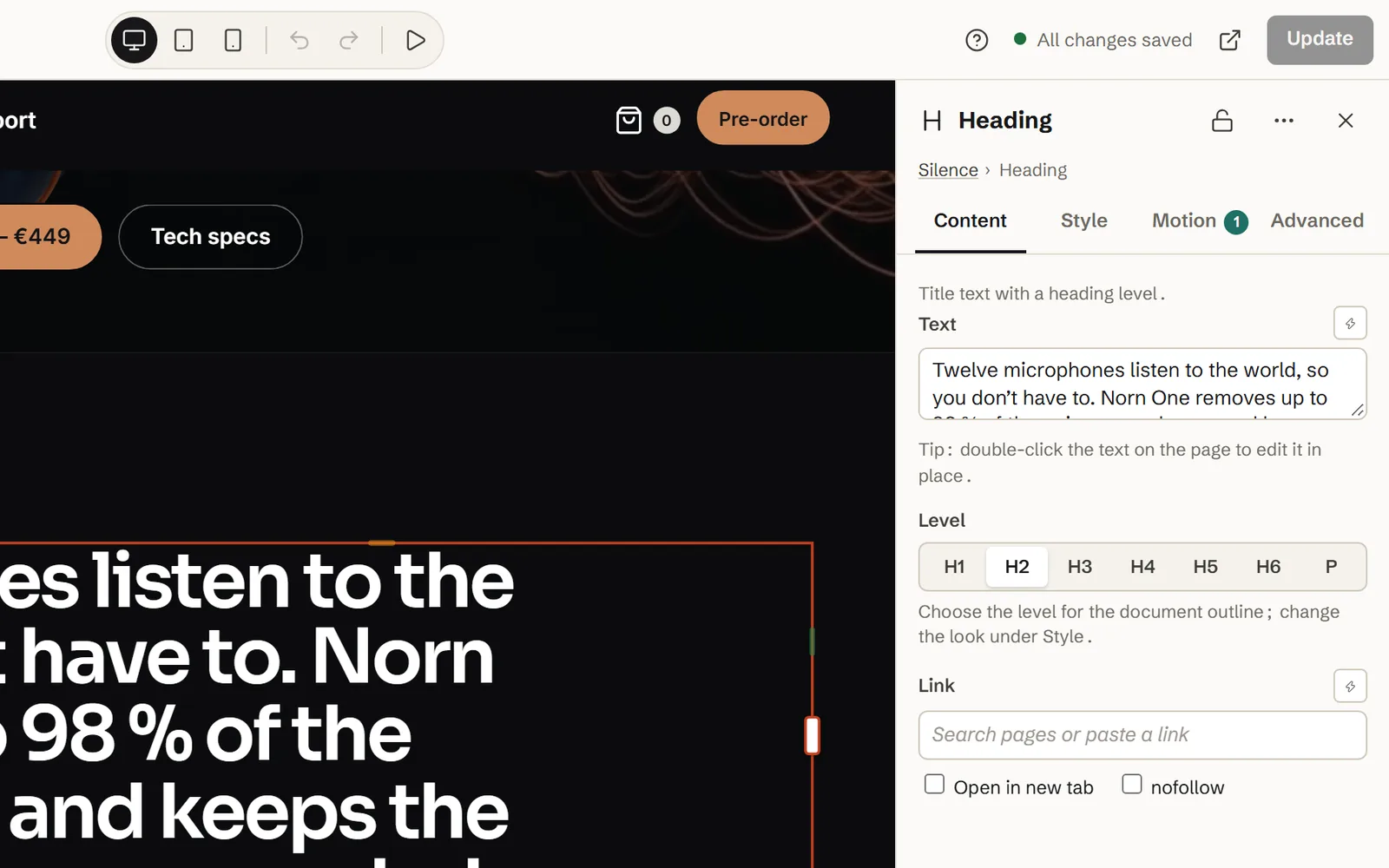
In the editor, click the heading on the canvas or in Layers. Reveals are made for Heading and Text elements; on a Text element, all its paragraphs reveal as one sequence.
Step 2: Open Motion and pick a text reveal
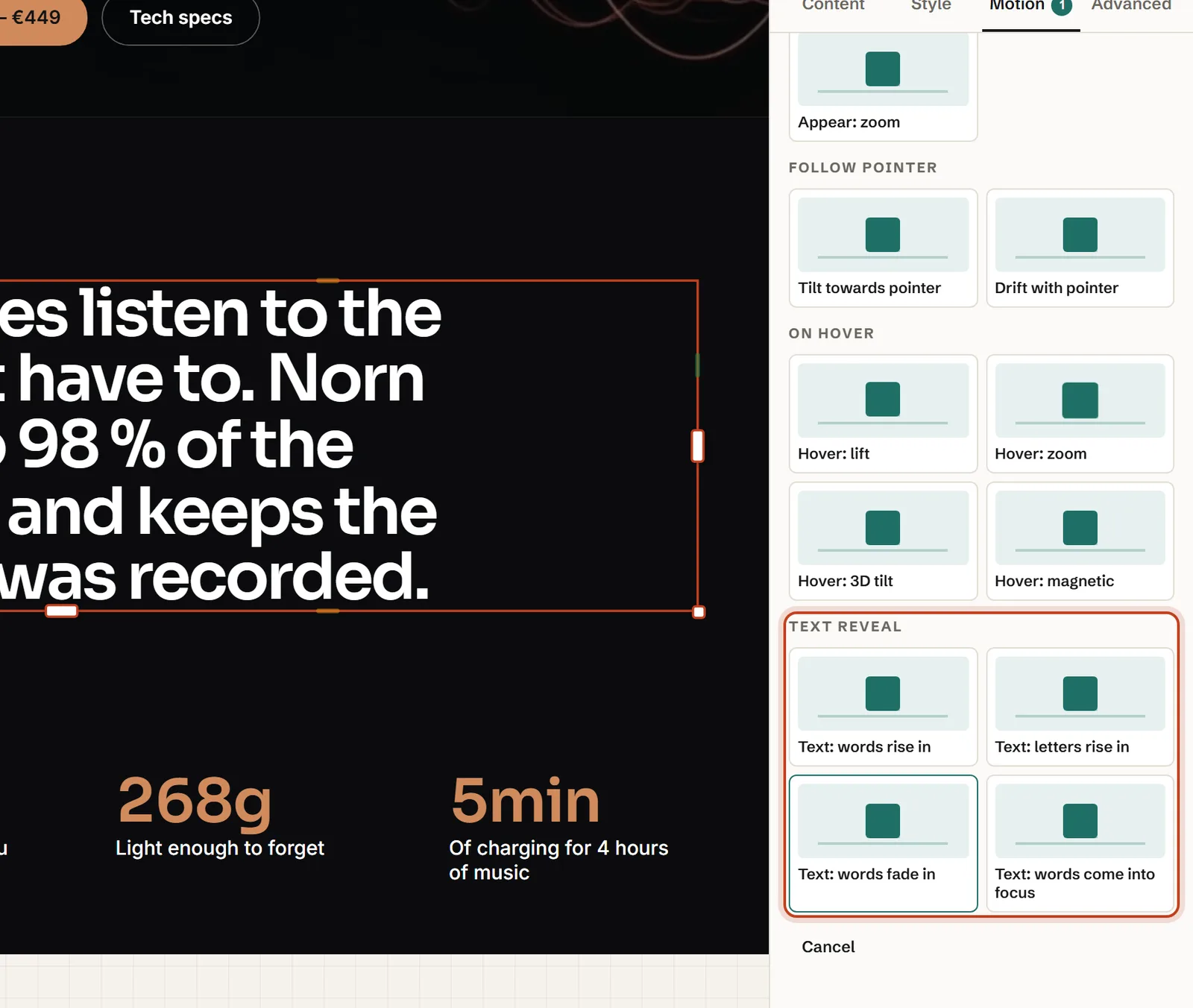
Open the Motion tab and choose a tile in the Text reveal group; if the heading is on screen, it plays straight away. The Motion tab in the user guide covers the other effects.
Step 3: Set the timing
Under One after another, choose Words or Letters. Time between them is the gap before the next piece starts, Duration how long each piece takes, and Delay holds the first one back – useful when a picture beside it should settle first.
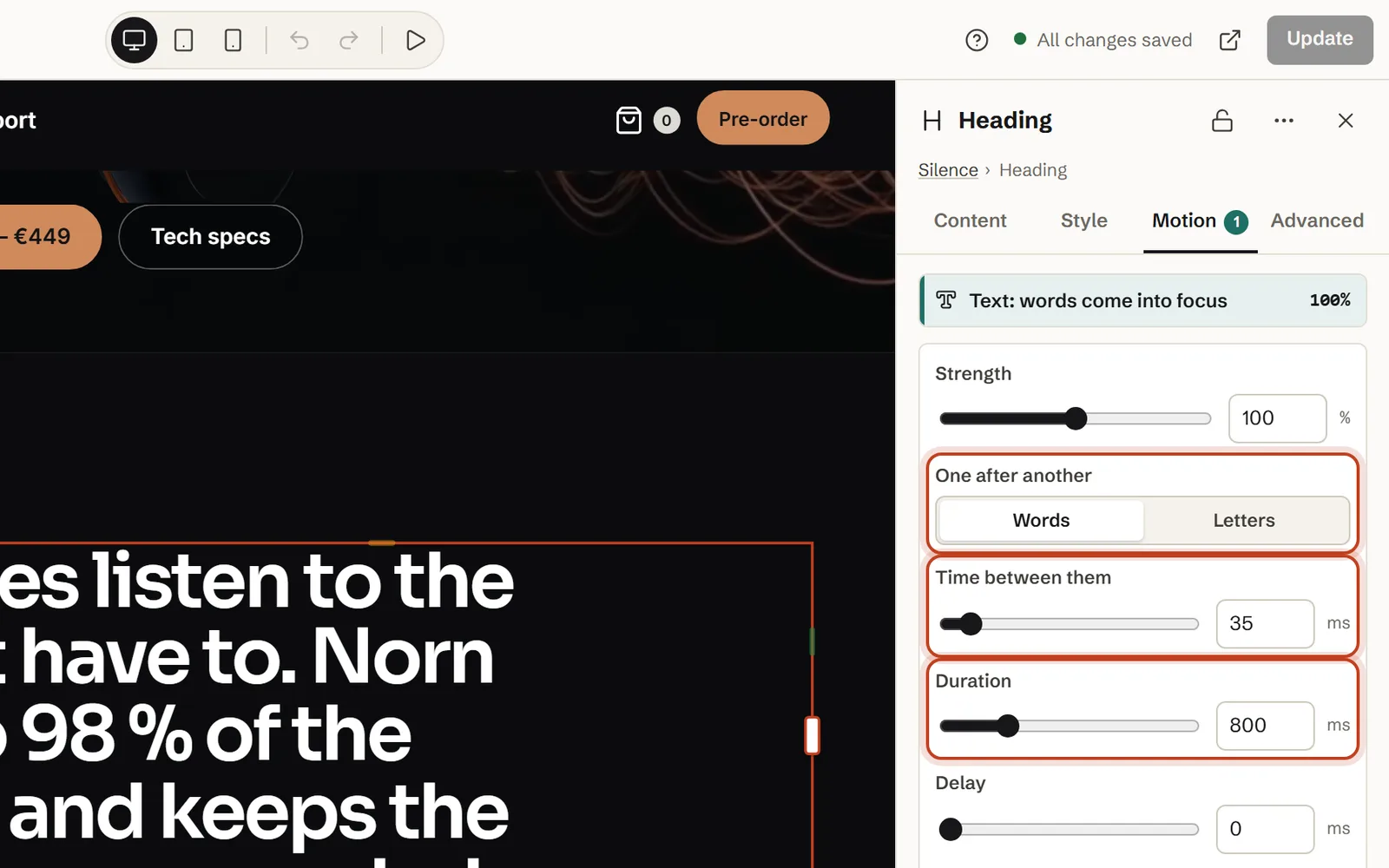
Step 4: Check it on a phone – and in a new tab
Switch the editor to Phone to see how the heading wraps: on a phone, the reveal runs down more lines in the same time. A reveal plays once per page view, so to watch it again – or see a new timing – open Preview in a new tab.
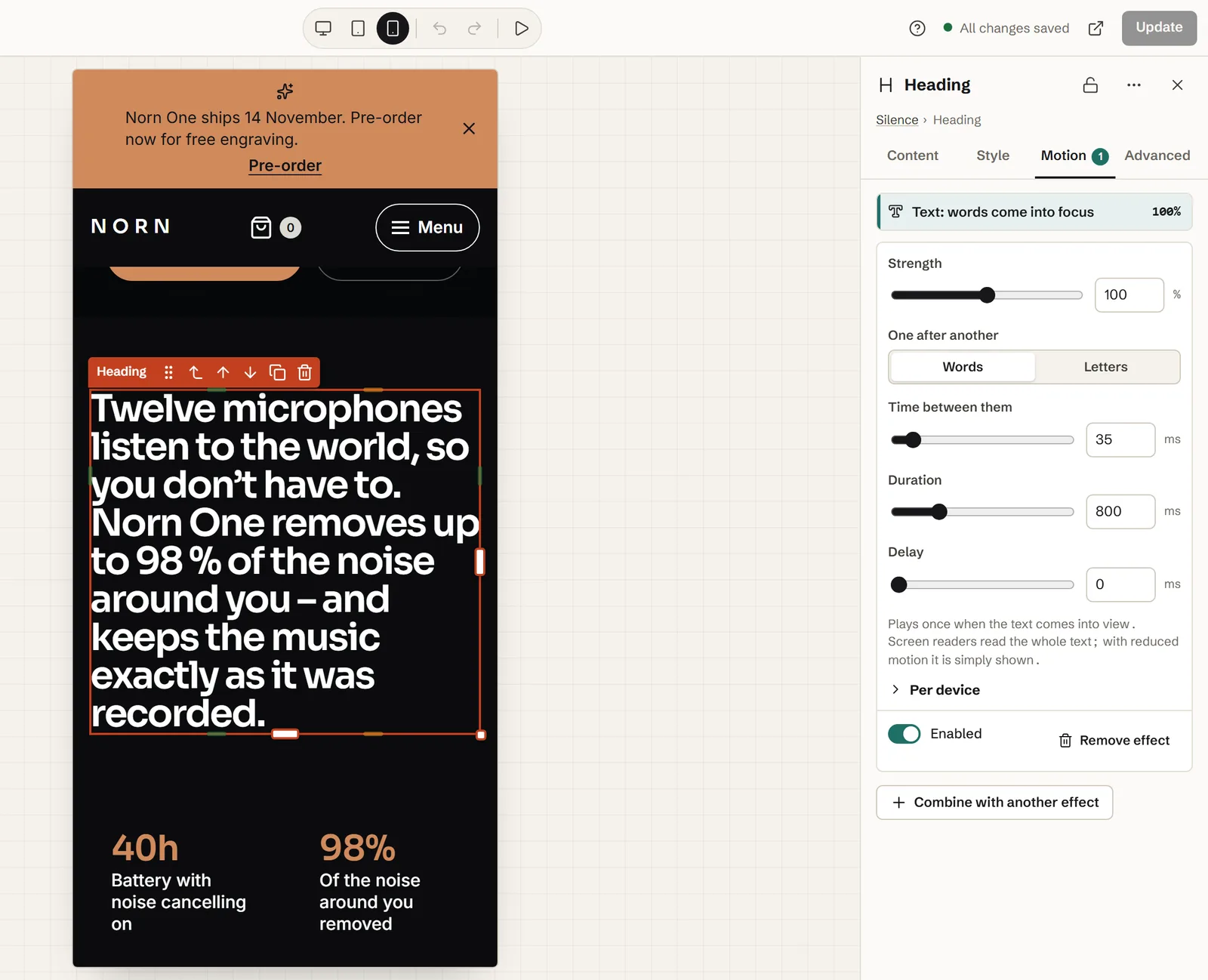
To check reduced motion, turn it on in your system settings and reload the preview: the heading is simply there, not split.
Step 5 (optional): Lines that follow the scroll
Add a Pinned scene, set Content inside to Normal layout and put each line in its own Heading with Fade in – inside a scene it runs on Scene progress (pinned scene). Drag the lines’ starts and ends on the chart so they follow one another (10–25 %, 25–40 %, 40–55 %); scroll back and they fade out.
Using Elementor? Select the section, choose Save as component, publish it and place it with Elementor’s Shortcode widget – the reveal comes along.
The settings, explained
The last column is the first heading in our demo.
| Setting | What it does | In our demo |
|---|---|---|
| One after another | Words or Letters. Letters fall back to words if the text has a link or a button. | Words |
| Time between them | The gap before the next piece starts (0–400 ms). | 35 ms |
| Duration | How long each piece takes (100–3,000 ms). | 800 ms (the default) |
| Delay | A wait before the first piece (0–2,000 ms). | 0 ms |
| Per device | 0 % turns the reveal off on that screen size; the text is simply shown. | Not changed |
The rise (0.55 em), the blur (8 px) and the easing are fixed. Strength and the per-device percentages scale Midground’s scroll effects, not a text reveal – so shape a reveal with timing.
The defaults for each reveal
| Effect | Splits into | Time between them | Duration | Each piece |
|---|---|---|---|---|
| Text: words rise in | Words | 60 ms | 650 ms | Rises 0.55 em, fades in |
| Text: letters rise in | Letters | 22 ms | 500 ms | Rises 0.55 em, fades in |
| Text: words fade in | Words | 70 ms | 700 ms | Fades in |
| Text: words come into focus | Words | 60 ms | 800 ms | Sharpens from an 8 px blur |
How long will it take?
Every reveal takes roughly Delay + (pieces − 1) × Time between them + Duration:
- Ten words with Text: words rise in: 9 × 60 + 650 = 1,190 ms – about 1.2 seconds.
- “Twelve microphones listen to the world, so you don’t have to.” – 11 words at 35 ms, 800 ms each: 10 × 35 + 800 = 1,150 ms. Norn’s full heading, 33 pieces, takes about 1.9 seconds.
- “Norn One” in letters – 7 pieces at 60 ms, 500 ms each: 6 × 60 + 500 = 860 ms.
A piece is whatever sits between spaces, so ‘98 %’ counts as two. Aim for a second or two per heading; past that, people wait for the text instead of reading it.
On phones and tablets
A reveal plays the same way on every screen: same pieces, same timing. Unlike Midground’s scroll effects, it gets no gentler version on phones – the only per-device choice is on or off. Set Per device → Phone to 0 % and screens narrower than 768 px get the text without a reveal (Tablet covers 768 to 1,199 px).
What changes is the shape: a two-line heading on a laptop can be five lines on a phone, and the reveal runs down all of them in the same time. With Letters, each word is kept together, so lines still break between words.
Accessibility: what screen readers hear
A screen reader reads what’s in the page, not what’s on screen. Split a heading carelessly and some screen readers spell it out letter by letter, or say nothing at all.
Words vs letters
With the word reveals, the words stay words: each is wrapped in a span, the spaces stay where they were, and nothing is hidden from assistive technology. In Chromium’s accessibility tree, the heading keeps its level and its whole sentence as its name.
With letters, Midground adds one visually hidden copy of the whole text for screen readers and hides the animated letters from them with aria-hidden. It doesn’t rely on aria-label – the approach GSAP’s SplitText uses by default, which read correctly in two of eight screen-reader and browser combinations in Adrian Roselli’s tests.
Roselli’s own advice is not to split words into letters at all. We checked the accessibility tree, not every screen reader, so keep letters for a short name or a single word, and listen to the page with VoiceOver or NVDA if your audience relies on one.
Reduced motion
Visitors who ask their device for reduced motion get a calm page automatically: Midground doesn’t split the text, so the heading is exactly what you wrote, shown at once. The same goes for everyone when Site-wide motion (Design → Motion) is Reduced for all or Off, and when JavaScript doesn’t run. That’s the idea behind WCAG’s Animation from Interactions: motion set off by scrolling should be something people can turn off.
Keep it short
A reveal asks people to wait for your words – worth it on a heading or a short statement, not on body text. While a word fades or sharpens, it has less contrast than the finished text, and nothing important should live only in the animation. More in accessibility habits.
Core Web Vitals: don’t reveal your LCP
Largest Contentful Paint (LCP), one of Google’s Core Web Vitals, marks when the largest text or picture in the first screen appears – often the main heading. It exists to measure when visitors can see the page.
A reveal works against that on purpose: every word starts transparent. On the main heading, the line people came for isn’t readable until the reveal has run. Chrome is built to leave fully transparent content out of LCP, but whatever the number says, visitors wait. Midground’s script also loads deferred, so on a slow connection a revealed heading can appear, vanish and then reveal itself.
So keep the main heading static – this page does – and save reveals for headings further down. Below the first screen a reveal can’t touch LCP: Chrome stops looking for the LCP element once the visitor scrolls.
What it costs
The reveal is part of Midground’s one small script for every effect – about 12.5 KB of JavaScript (compressed) before interaction on our demo – with no animation library. It doesn’t listen to scrolling: the browser reports when a quarter of the heading is on screen and CSS transitions do the rest, so the page scrolls at the visitor’s own speed. The movement uses only opacity, transform and filter, which don’t push anything around.
Is split text bad for SEO?
No. Your sentence is in the page’s HTML exactly as you wrote it; Midground wraps the words or letters in spans only in the visitor’s browser. Crawlers that run JavaScript, as Google’s does, still find the same words in the same order, and the heading level doesn’t change. The one thing to watch is the LCP point above.
Common mistakes (and fixes)
A paragraph takes forever to appear
Count the pieces: a 60-word paragraph with Text: words fade in takes 59 × 70 + 700 = 4,830 ms. Lower Time between them to 15–20 ms (under two seconds), move the reveal to the heading above, or leave the paragraph still.
The text appears late – or never
A reveal starts when about a quarter of the element is on screen. On a tall element that comes late; on one more than four screens tall it never comes, and the text stays hidden – on a phone held sideways, four screens isn’t much. Keep reveals on headings and short text.
Letters look loose, or a script falls apart
Each letter becomes its own small box, so the font can’t kern letter pairs or join ligatures such as ‘fi’ – visible on big display type. In scripts where letters join, such as Arabic, splitting breaks the joins. Use Words for anything but a short heading.
“Letters” turned into words
The text has a link or a button in it – or the heading has a Link set. Midground switches to words on purpose, so the link keeps working and is read as a link.
It only plays once
On purpose, as described above. Reload, or use Preview in a new tab, to see it again.
The page’s main heading appears late
That’s the LCP point above: take the reveal off the H1, or off whatever is largest in the first screen.
Let an AI agent build it
From Midground Builder 1.2, AI agents (Claude Code, Cursor, Codex) can build pages through the WordPress MCP Adapter – text reveals included, with the same settings as the editor. Start on a draft: on a published page, changes go live as the agent saves them. Let an AI agent build it shows how to connect one.
Prompt for your AI agent
Using Midground, on the draft page “About”, give every H2 the effect “Text: words rise in” with 60 ms between words, and leave the H1 without effects. Show me the preview link before you publish.
The code way: GSAP SplitText or CSS scroll-driven animations
If you’d rather write it yourself, GSAP with its SplitText plugin is the usual route, and both are free to use. Load GSAP, SplitText and ScrollTrigger with wp_enqueue_script, then:
gsap.registerPlugin(SplitText, ScrollTrigger);

gsap.matchMedia().add('(prefers-reduced-motion: no-preference)', () => {
  gsap.utils.toArray('.reveal').forEach((el) => {
    const split = SplitText.create(el, { type: 'words' });
    gsap.from(split.words, {
      yPercent: 100,
      autoAlpha: 0,
      stagger: 0.06,
      duration: 0.65,
      ease: 'power3.out',
      scrollTrigger: { trigger: el, start: 'top 85%' }
    });
  });
});
You then own the rest: loading it only where it’s needed, splitting again when fonts load or the width changes (SplitText’s autoSplit helps), reduced motion, and accessibility – SplitText’s default is the aria-label approach above. Check the code against the current SplitText documentation.
Pure CSS can tie words to the scroll with animation-timeline: view(), but you wrap every word in a span by hand, words on one line move together, and Firefox supports it only behind a flag.
Questions about text reveal on scroll
Will search engines read text that is revealed word by word?
Yes. The text is ordinary text in the page’s HTML, exactly as you wrote it. Midground only wraps the words or letters in spans in the visitor’s browser, so search engines see the sentence as written.
Do screen readers read split text correctly?
With the word reveals, the words stay words and nothing is hidden. With letters, Midground adds a hidden copy of the whole text for screen readers and hides the animated letters from them; text with a link is revealed word by word instead. Screen readers differ, so use letters only for short headings.
Can the reveal follow the scroll instead of playing once?
Not the four text reveals – they play once, the first time the text comes into view. For lines that follow the scroll, give each line its own heading and Fade in inside a Pinned scene, with its own start and end on the scroll chart (Step 5).
Can a text reveal hurt Core Web Vitals?
On the page’s main heading, it can: every word starts transparent, and LCP is about when visitors can see that line. Keep the main heading static and use reveals further down – once visitors scroll, Chrome stops looking for the LCP element.
What do visitors who prefer reduced motion see?
The text, right away, with no movement – Midground doesn’t split it at all. The same goes for every visitor when Site-wide motion is set to Reduced for all or Off.
What’s the difference between a text reveal and a text highlight on scroll?
A reveal brings the words in once, as the text comes into view, and they stay. A highlight shows the whole text in grey and fills it word by word as the visitor scrolls, backwards too. Midground has no ready-made highlight; the closest is Step 5, lines that fade in on a Pinned scene’s progress.
Which reveal should I use for a long paragraph?
Usually none. Reveals work best on headings and short statements; on long text they make people wait – a 60-word paragraph at the default fade takes almost five seconds. If you want one, use Text: words fade in with 15–20 ms between words.
Do I need GSAP or SplitText?
No. Midground’s own script does it, and you set it up in the visual editor. GSAP and its SplitText plugin are free to use, but then you write, test and maintain the code – including reduced motion and the accessibility part – yourself.
About the author. Pelle Nilsen makes Midground – a solo developer in Norway. Every demo in this guide was built in the same editor you can open in your browser. Questions or corrections: hello@midgroundwp.com. More about Midground.
Take this demo apart in your browser
Remix opens the editor with a full copy of the Norn demo site, in your browser – no sign-up, nothing to install. Change the settings from this guide and watch what happens.
More guides