Step-by-step guide · 12 min read
Sticky scroll animation in WordPress: a pinned scene in steps
A sticky scroll animation – also called a pinned scroll – holds a section on screen while the visitor keeps scrolling, and uses that scroll to change what’s inside. In Midground you add a Pinned scene, set its length in screen heights and give each act an entrance and an exit on a scroll chart – no code. Scroll the demo below.
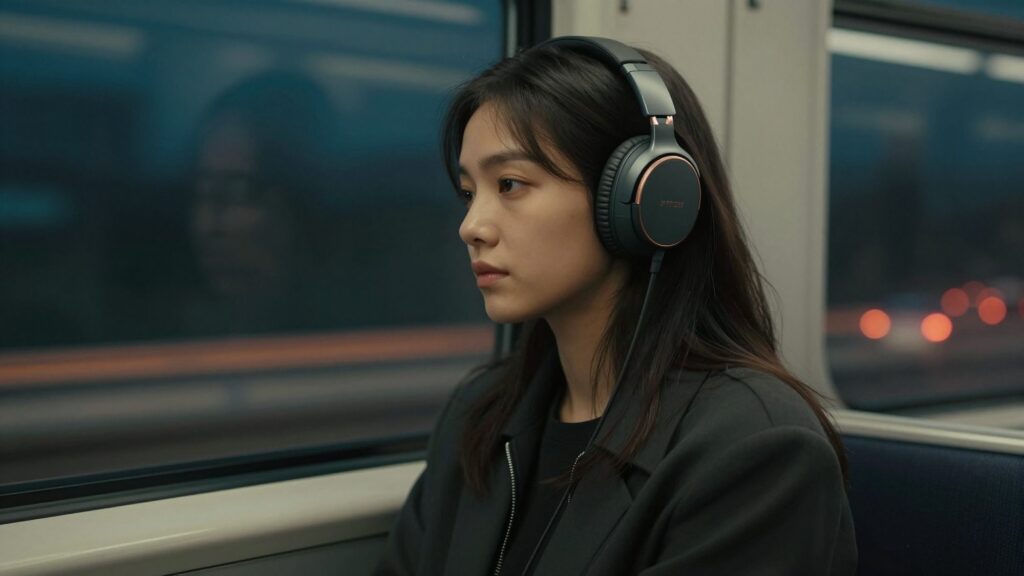
Mode 01 / 03
Quiet.
Twelve microphones listen to the world around you, forty-eight thousand times a second, and quietly remove it. Trains, engines, open offices: gone.

Mode 02 / 03
Aware.
Let the world back in when you need it. Voices and traffic come through clearly, wind noise does not.

Mode 03 / 03
Open.
Take one cup off your ear and the music pauses. Put it back and you are where you left off.
Read the transcript
On screen: “Norn · built with Midground” and “A pinned scene in three steps.” The Norn demo page scrolls by in real time, and a pinned scene holds the screen while three modes take turns: Quiet, a woman by a night-train window; Aware, a person on a windswept coast road; and Open, a man with a laptop in a café. The caption changes to “The page holds while you scroll.” Then WordPress’s Pages list: “Edit with Midground” opens the page in the Midground editor, under the words “Yes, this is WordPress.” The end card shows the Midground logo, “Yes, this is WordPress.” and “Try it in your browser · midgroundwp.com/try”. Music only, no speech.
What is a sticky scroll animation (pinned scroll)?
A pinned scene is a section that stops moving while the visitor goes on scrolling, at their own speed. Instead of moving the page, the scroll changes what the section shows – one picture gives way to the next, a new line replaces the last. When the final step has played, the section lets go and the page scrolls on.
Sticky, pinned, scrollytelling – one idea, three names
“Sticky” comes from CSS, where position: sticky keeps an element in view while its parent scrolls past. “Pinned” is what animation libraries such as GSAP call the same thing. “Scrollytelling” is the newsroom word for stories told this way – see scrollytelling in WordPress. In Midground the element is called Pinned scene, and its steps are acts.
When a pinned scene helps – and when it gets in the way
A scene earns its place when the order matters and each step is short: three features of a product, a process in steps, before and after, the chapters of a story. It is one of the tricks behind Apple-style scroll pages in WordPress.
It gets in the way of long reading, forms and side-by-side comparisons: while it holds, scrolling moves the scene, not the page. One or two scenes per page is plenty; for a row of many items, a horizontal scroll section usually fits better.
How to build a pinned scene in Midground
The demo above uses exactly the settings below. To follow along, remix it and select Three modes in Layers.
Step 1: Add a Pinned scene
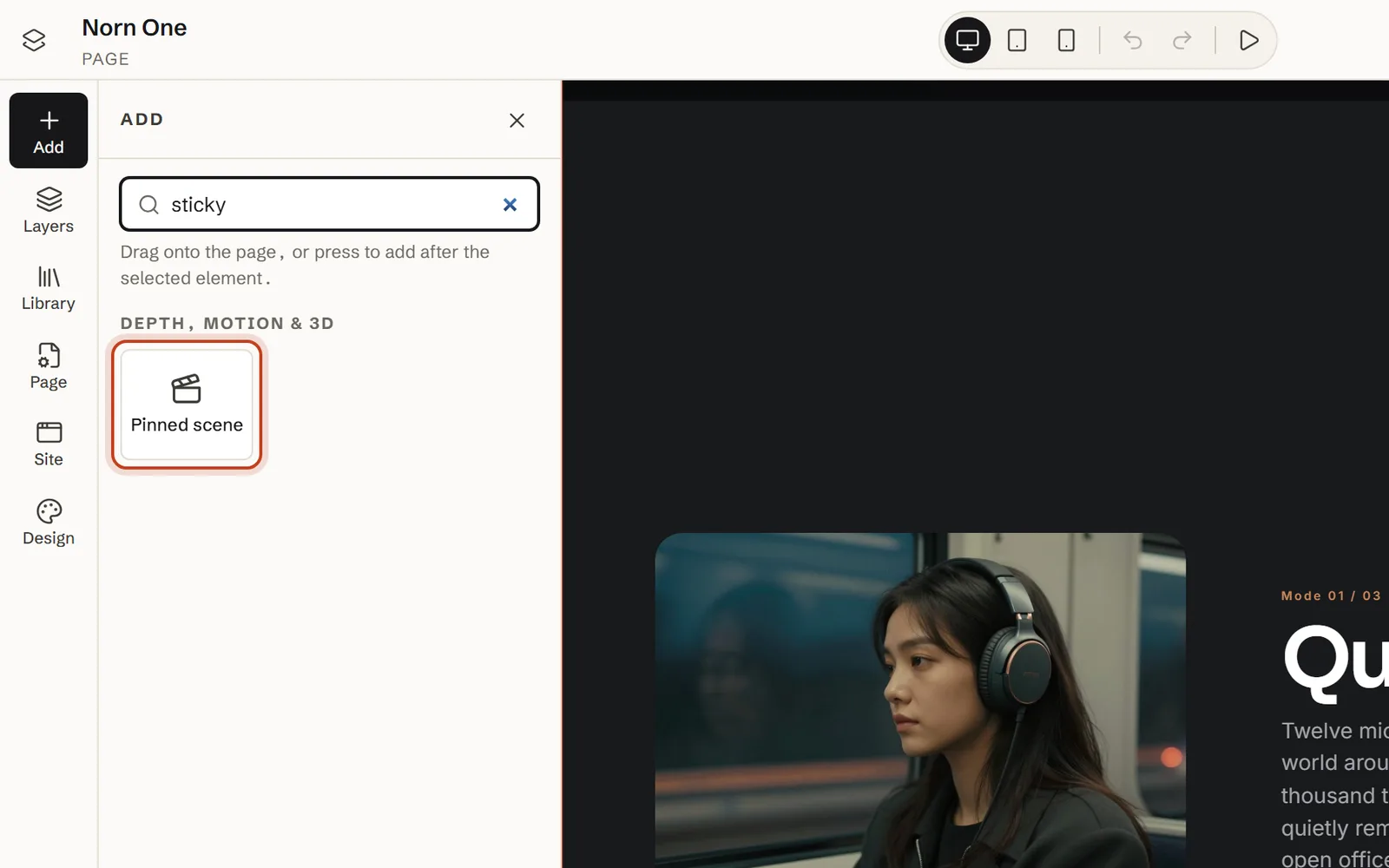
Open Add, go to Depth, motion & 3D and drag Pinned scene onto the page – or search for “sticky”. It arrives with two timed example acts. Library → Depth & motion → Pinned story in three steps has three.
Step 2: Set the scroll length in screen heights
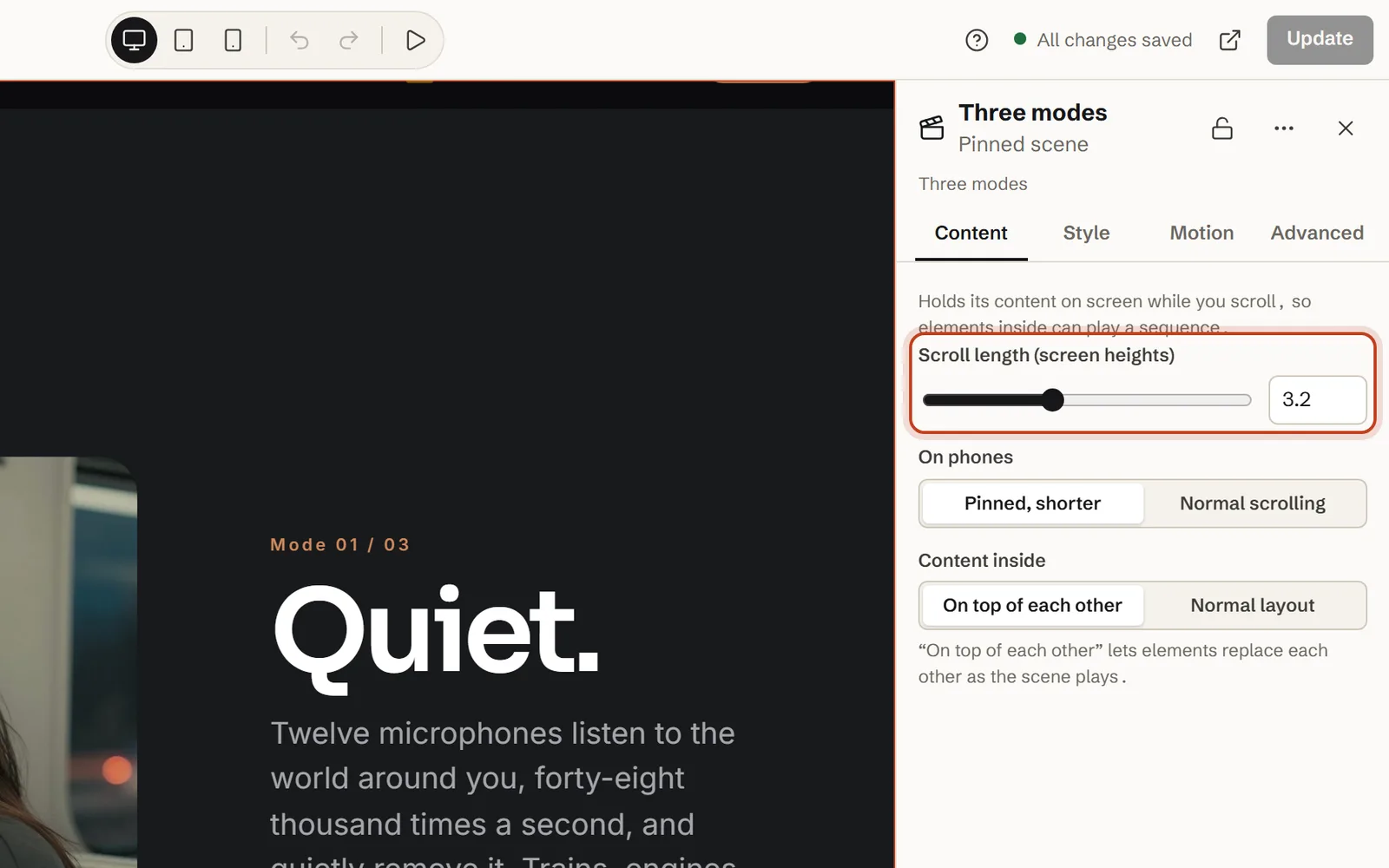
Select the scene and set Scroll length (screen heights) in its Content settings. It is the height of the whole scene: at 3.2 the scene is 3.2 screens tall, and since the part that holds still fills one screen, it holds for the other 2.2. The slider moves in quarter steps, so type 3.2 in the number field.
Step 3: Add one container per act
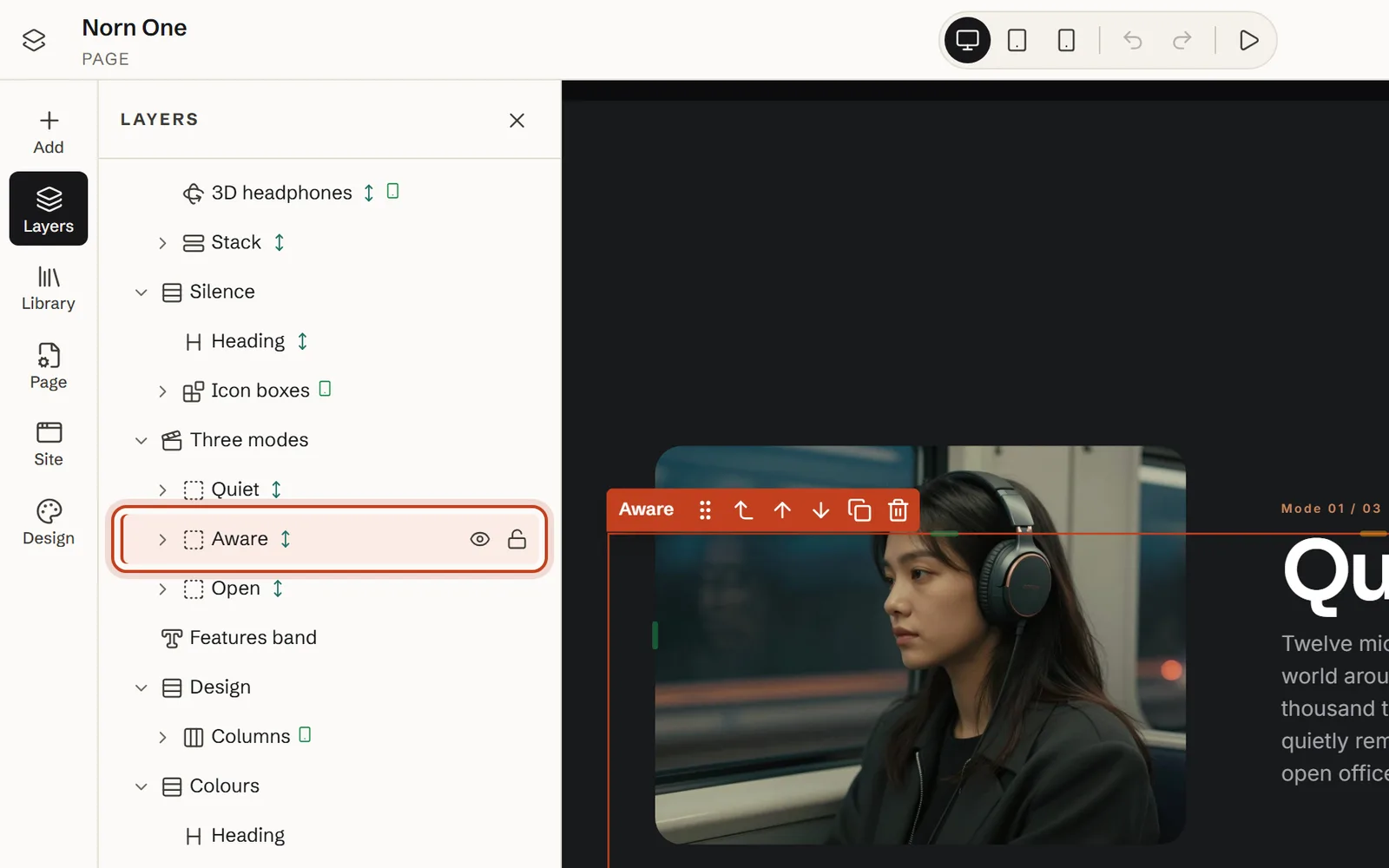
Leave Content inside on On top of each other. Every element placed directly in the scene then becomes a layer in the same spot, so give each act one Container and put its picture and words inside – ours are Quiet, Aware and Open. On the canvas the acts lie on top of each other, so select them in Layers, and name them there (double-click or F2) so the list reads like a storyboard. See it at work in a four-act pinned scene about how fjords form.
Step 4: Give each act an entrance and an exit on the scroll chart
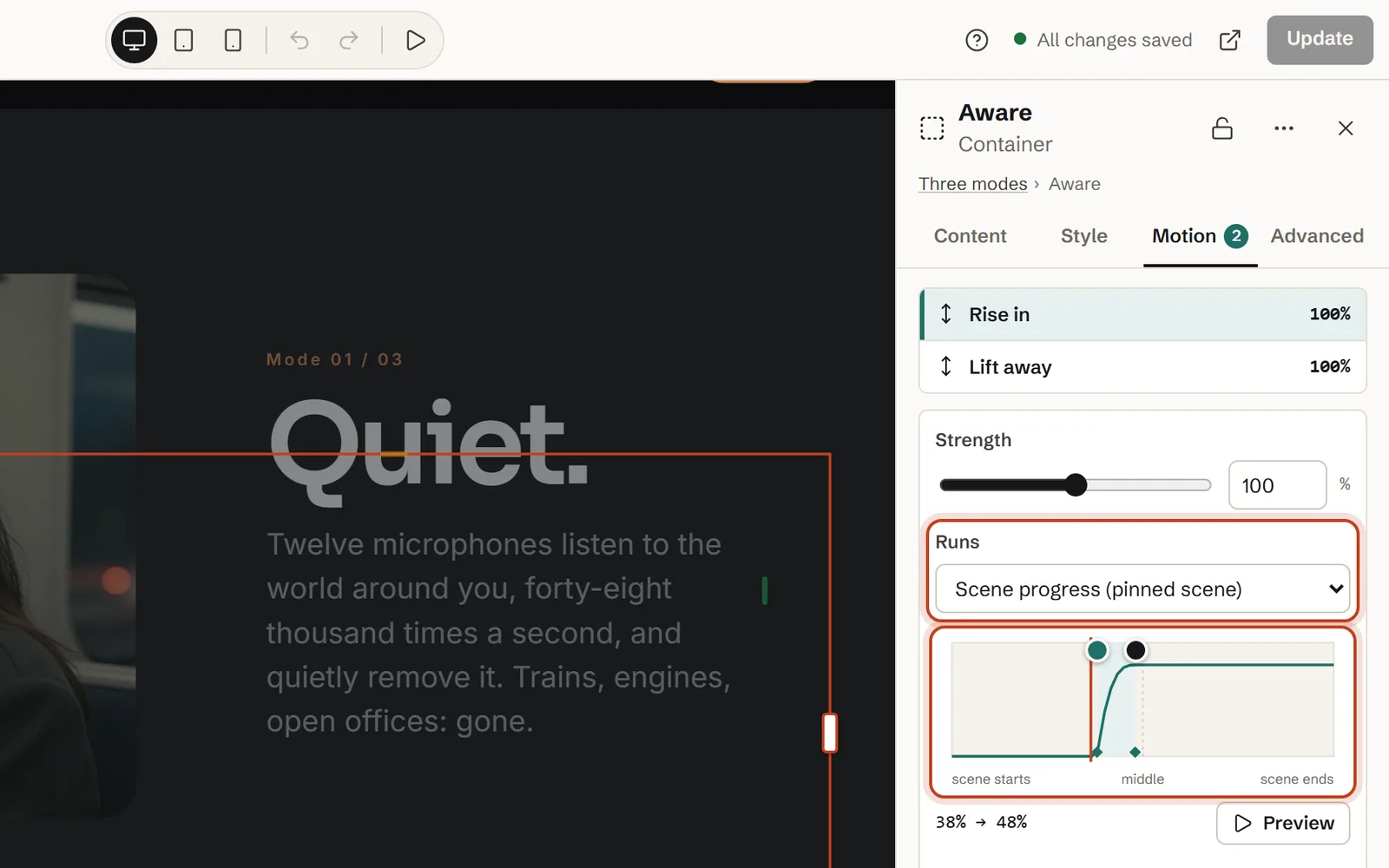
Select an act, open Motion and pick Rise in (under Enter) or Lift away (under Exit). Inside a scene, Runs is set to Scene progress (pinned scene) for you, so the chart runs from “scene starts” to “scene ends”. Drag the Effect start and Effect end handles (or use the arrow keys; Shift moves 10) and drag across the chart to preview. Combine with another effect adds the exit. More in the Motion tab in the user guide.
Effects on elements inside an act follow the scene too. The exceptions are Appear once and Text reveal: they play when an element comes into view, and in a stacked scene every act does that the moment the scene arrives. Keep them for the first act – for instance to reveal a heading word by word.
Step 5: Preview it – on a phone and with reduced motion
Switch the canvas to Phone (390 px, or press 3) and scroll through the scene. Then open the Motion preview menu at the top and choose Preview with reduced motion to see the calm version; Show motion brings the effects back.
Step 6: Publish – or reuse it on another page or theme
Publish as usual. To use the scene elsewhere, select it, choose Save as component (Ctrl+Shift+S) and publish the component. It goes into the block editor as the Midground section block, and into widgets or other builders with its shortcode, such as [midground id="123"] – motion included, also next to your current theme.
The settings, explained
The values behind the demo, copied from the Norn demo site. More under depth, parallax and pinned scenes in the user guide.
Scroll length, On phones and Content inside
| Setting | What it does | In our demo |
|---|---|---|
| Scroll length (screen heights) | Height of the whole scene: 1.5 to 6, default 2.5. It holds for all but one screen of it. | 3.2 |
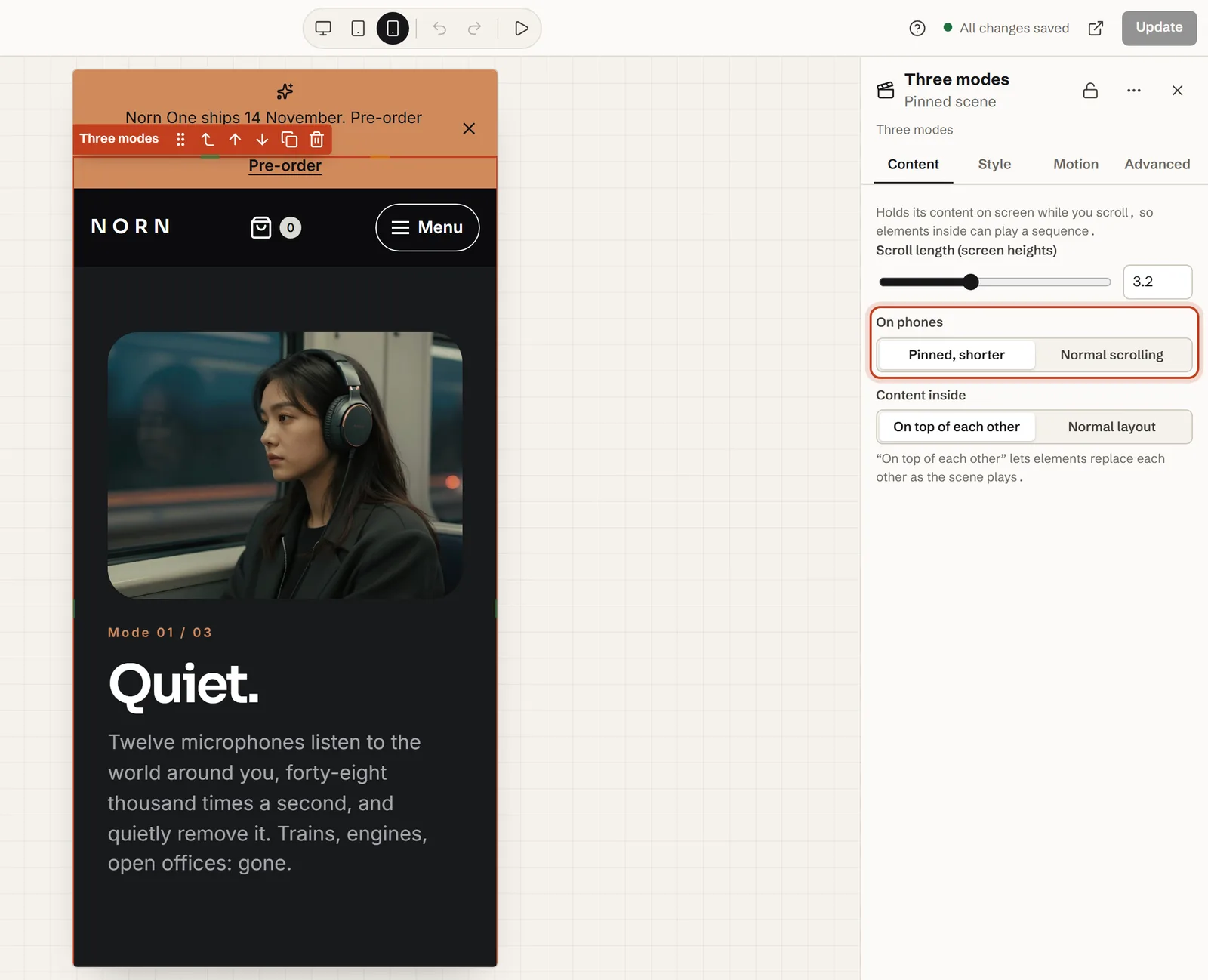
| On phones | Pinned, shorter: 70 % of the height. Normal scrolling: not held on phones. | Pinned, shorter |
| Content inside | On top of each other: acts share one spot and replace each other. Normal layout: one after another. | On top of each other |
| Runs (Motion tab) | Scene progress (pinned scene): the effect follows the scene from 0 to 100 %. | Every effect |
| Effect start / Effect end | Where in the scene an effect begins and ends. | Below |
| Per device (Motion tab) | Strength on tablets and phones: 85 % and 60 % by default. | Default |
The act timeline from our demo
| Act | Enters (Rise in) | At rest | Leaves (Lift away) |
|---|---|---|---|
| 1 · Quiet | On screen from the start | 0–30 % | 30 % → 38 % |
| 2 · Aware | 38 % → 48 % | 48–60 % | 60 % → 68 % |
| 3 · Open | 68 % → 78 % | 78–100 % | Stays until the scene ends |
Each change takes 8–10 % of the scene, and the next act starts rising the moment the last one has gone, so two acts never share the screen. Act one has no entrance, so the scene never starts empty; act three has no exit, so it ends on a picture. Rise in settles (Movement: Settle) and Lift away speeds up (Build) – the defaults.
A scroll budget that feels right
The percentages are shares of the hold, not of the page. At 3.2 the scene holds for 2.2 screen heights – on a window 900 px tall, about 1,980 px of scrolling – so every 10 % is about 200 px. Act one rests for 30 % (two-thirds of a screen), act two for 12 % (a quarter) and act three for 22 % (about half) before the scene lets go.
Rule of thumb: about one screen height per act, plus a little for the last one – two acts ≈ 2.5, three ≈ 3–3.5, four ≈ 4–4.5. More than four? Make two scenes. Give each change 8–10 % and each act a rest of at least 10 %.
On phones and tablets
Tablets get the full scene, with effects at 85 % strength. Phones – screens narrower than 768 px – follow the scene’s On phones setting:
- Pinned, shorter (the default, and our demo): the scene is 70 % as tall. Our 3.2 becomes 2.24 screen heights, and because the held stage is still a full screen, it holds for about 1.24 – so every 10 % is about 105 px at 390 × 844.
- Normal scrolling: nothing is held on phones, and the scene scrolls by like an ordinary section. Stacked acts still share one spot and take turns as it passes, quickly, so for a scene like ours keep Pinned, shorter.
Effects run at 60 % strength on phones (Design → Motion → Default strength on phones, or Per device on each effect). Only the movement is softened – on our demo the acts rise 54 px instead of 90 – while fades always finish, so acts never hang half-visible on top of each other.
Heights use svh, the screen height with the browser’s bars showing, so the scene doesn’t jump when a phone’s address bar slides away.
Accessibility and reduced motion
Visitors who ask their device for reduced motion get a calm page automatically. The scene becomes an ordinary section: nothing is pinned, and the acts are shown one after another, at rest. Design → Motion → Site-wide motion → Reduced for all gives everyone that version. WCAG’s success criterion 2.3.3 Animation from Interactions is about exactly this kind of motion.
Nothing is hidden from screen readers either way: the acts are ordinary text and pictures, read in their Layers order whatever the scroll position. Keyboard users scroll through the scene as through any page. A few habits help:
- Put the point in words. If an act only makes sense while it moves, it doesn’t work for everyone.
- Give each act a real heading, in order – on the Norn demo site each act’s title is a level-2 heading – and describe every picture.
- Keep links and buttons out of the acts: a faded-out act is transparent, not gone, so it can still take keyboard focus – and clicks, as below.
Performance: what a pinned scene costs
The holding is plain CSS: the scene’s stage is position: sticky, and the browser keeps it in place. One small script moves the acts – about 12.5 KB of JavaScript (compressed) on our demo, for all the effects together – and it loads only on pages that use motion, 3D or interactive elements.
The script listens to scrolling passively and draws in step with the screen (requestAnimationFrame), so it never takes over the mouse wheel: the page scrolls at the visitor’s own speed. The acts change only transform and opacity, which browsers can animate without laying the page out again, and the scene’s height comes from CSS, so nothing jumps when the script starts.
If the scene comes first on the page, turn on Load first (image near the top of the page) for the first act’s picture. This page does, since the demo sits right under the introduction; act one has no entrance, so its picture shows from the first frame.
Common mistakes (and fixes)
Position: sticky not working – the scene scrolls away
A box around it has overflow set to hidden or auto – often a theme’s wrapper when the scene sits on another theme’s page, or a container with Overflow set under Style → Appearance – and a sticky element holds only inside the nearest such box. Use clip instead: it cuts off overflow the same way without breaking the pin. overflow-x: hidden counts too, because it turns the other direction to auto.
It hardly holds on a phone
The scene is short. On phones it is 70 % as tall, but the stage is still a full screen, so at 1.5 it is 1.05 screens tall and holds for barely a twentieth of a screen. Use 2.5 or more if it should really hold on phones.
Two acts show at once, or the stage goes blank
Their ranges overlap, or leave a gap. Let the next act start where the last one ends – 38 → 38 in our demo. Overlap by a few per cent only on purpose, for a cross-fade.
The scene feels endless
Too many screen heights for what happens in them. Shorten the rests, cut an act, or split the story into two scenes.
The top of the scene hides under the header
A header that sticks to the top (Stick to the top while scrolling, or your theme’s own) lies over the held stage. The acts are centred, so this only matters when an act is nearly a screen tall – keep acts compact, and check at phone size.
A button in the scene doesn’t respond
Later acts lie on top of earlier ones, transparent but still there: on our demo, a click on act one’s heading lands on act three. Move buttons and links out of the acts, to just after the scene.
Nothing moves in the editor
The Motion preview menu at the top is probably on Pause motion while editing or Preview with reduced motion. Choose Show motion. While motion is paused, all acts show at rest – on top of each other, which is expected.
Let an AI agent build it
From Midground 1.2, every step of building a page is a WordPress ability, so an AI agent – Claude Code, Cursor or Codex – can build this scene through the WordPress MCP Adapter, as the WordPress user you choose. It saves a draft; you check it and publish. How to connect: let an AI agent build it (Claude Code, Cursor, Codex).
Prompt for your AI agent
Using Midground, add a pinned scene with three acts to the page “Product”: 3 screen heights long, each act a picture and a short heading. Acts two and three rise in, acts one and two lift away, and each act starts where the last one ends. Keep it pinned but shorter on phones. Show me a preview before you publish.
The code way: position: sticky or GSAP ScrollTrigger
Written by hand, the idea is the same: a tall outer box, a screen-high sticky stage inside it, and something that maps the scroll to the acts. In CSS, a named view timeline can do the mapping – in Chrome and Edge 115+ and Safari 26+, but not yet by default in Firefox at the time of writing:
.scene { height: 320svh; view-timeline: --scene; }
.stage { position: sticky; top: 0; height: 100svh;
  display: grid; place-items: center; }
.stage > * { grid-area: 1 / 1; }
.act-2 {
  animation: rise-in linear both;
  animation-timeline: --scene;
  animation-range: contain 38% contain 48%;
}
@keyframes rise-in { from { opacity: 0; translate: 0 90px; } }
@media (prefers-reduced-motion: reduce) {
  .scene { height: auto; }
  .stage { position: static; height: auto; display: block; }
  .act-2 { animation: none; }
}
With GSAP and its ScrollTrigger plugin, the stage itself is pinned and GSAP adds the space after it. Our demo becomes end: "+=220%": GSAP counts only the hold, while Midground’s Scroll length counts the whole scene.
gsap.registerPlugin(ScrollTrigger);
const mm = gsap.matchMedia();
mm.add("(prefers-reduced-motion: no-preference)", () => {
  gsap.timeline({
    defaults: { ease: "none" },
    scrollTrigger: { trigger: ".stage", start: "top top", end: "+=220%", pin: true, scrub: true },
  })
    .to(".act-1", { autoAlpha: 0, y: -90, duration: 0.08 }, 0.3)
    .from(".act-2", { autoAlpha: 0, y: 90, duration: 0.1 }, 0.38)
    .set({}, {}, 1); // pad to 1, so positions read as shares of the scene
});
Either way, the rest is yours to look after: loading the script the WordPress way (wp_enqueue_script), breakpoints and phones, resizing, reduced motion, clashes with your theme’s CSS – and a client who can’t change any of it without you. Check the details against the ScrollTrigger docs and MDN’s animation-timeline.
Questions about sticky scroll animation
What’s the difference between sticky and pinned scrolling?
Nothing, for the visitor. “Sticky” comes from the CSS rule position: sticky; “pinned” is what animation libraries such as GSAP call it. Both mean a section stays on screen while the page keeps scrolling. In Midground the element is called Pinned scene.
How long should a pinned scene be?
About one screen height per act, plus a little for the last one: 2.5 for two acts, 3–3.5 for three. Our demo uses 3.2 for three acts, which holds for 2.2 screens on a computer. Much longer and the page starts to feel stuck; if you need more than four acts, use two scenes.
Do I need Elementor Pro, GSAP or custom code?
No. The Pinned scene is an element in Midground’s visual editor, and Midground’s own small script runs it. You can use it with the Midground theme or next to your current theme, through the Full width page layout or the Midground section block – or in Elementor, with its Shortcode widget.
Why is my sticky section not sticking?
Almost always, a box around it has overflow set to hidden or auto – often a theme’s wrapper – and position: sticky only holds inside the nearest such box; overflow-x: hidden counts too. Use overflow: clip, or the theme’s Full width page template. On phones, a scene under 2.5 screen heights holds only briefly.
Does a pinned scene work on phones?
Yes. By default it stays pinned on phones, but the scene is 30 % shorter, so nobody scrolls for ages. You can switch On phones to Normal scrolling instead, so it isn’t held at all. Effects run at 60 % strength on phones unless you change it.
What do visitors who prefer reduced motion see?
A calm page. The scene becomes an ordinary section: nothing is pinned, and the acts are shown one after another, at rest. Screen readers read every act in order either way.
Is a pinned section bad for SEO?
No. Every act is ordinary text and pictures in the page’s HTML, so search engines read all of it. Keep the main explanation in text rather than only in pictures, and keep the page’s main heading outside the animation so it shows at once.
Can I put video or a 3D model in a pinned scene?
Yes: any element can be an act, and the scene itself can have a background video (Style → Background). But a 3D model’s Turn while scrolling (°) follows the model moving across the screen, so it holds still while the scene is pinned. Let visitors drag it instead – see a 3D model that turns as you scroll.
About the author. Pelle Nilsen makes Midground – a solo developer in Norway. Every demo in this guide was built in the same editor you can open in your browser. Questions or corrections: hello@midgroundwp.com. More about Midground.
Take this demo apart in your browser
Remix opens the editor with a full copy of the Norn demo site, in your browser – no sign-up, nothing to install. Change the settings from this guide and watch what happens.
More guides