Step-by-step guide · 12 min read
How to add a 3D model to WordPress – and make it turn as you scroll
WordPress can’t show 3D models on its own – it even blocks .glb uploads. Midground’s 3D model element shows a GLB file with built-in lighting, turns it as the page scrolls, lets visitors drag it, and shows a poster picture until the model is needed, or wherever 3D isn’t available. Here’s how to set it up without code.
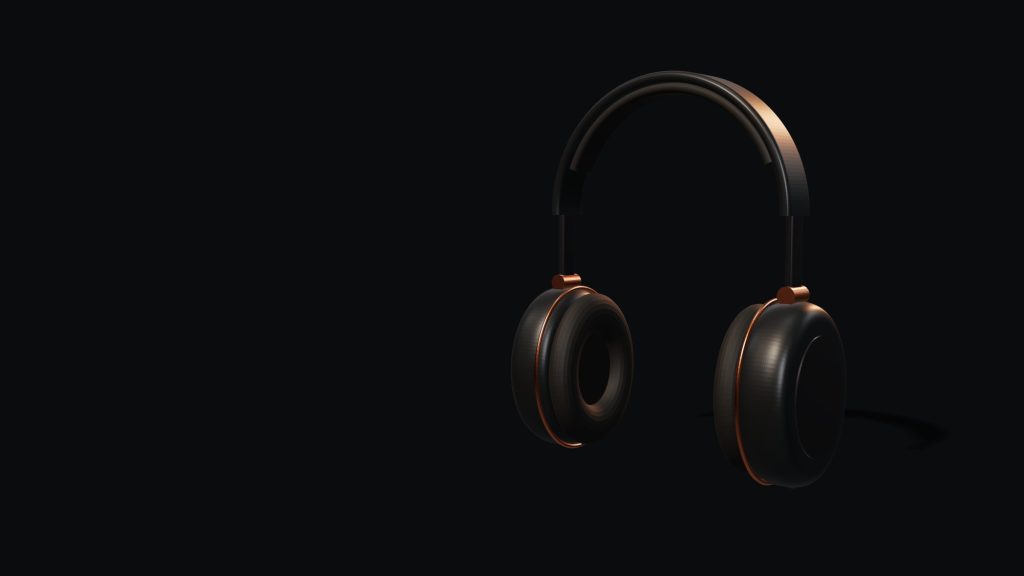
Norn One · a GLB file
Drag it. Scroll it.
The headphones turn 160° while they cross the screen. Drag them to look from any side.
Read the transcript
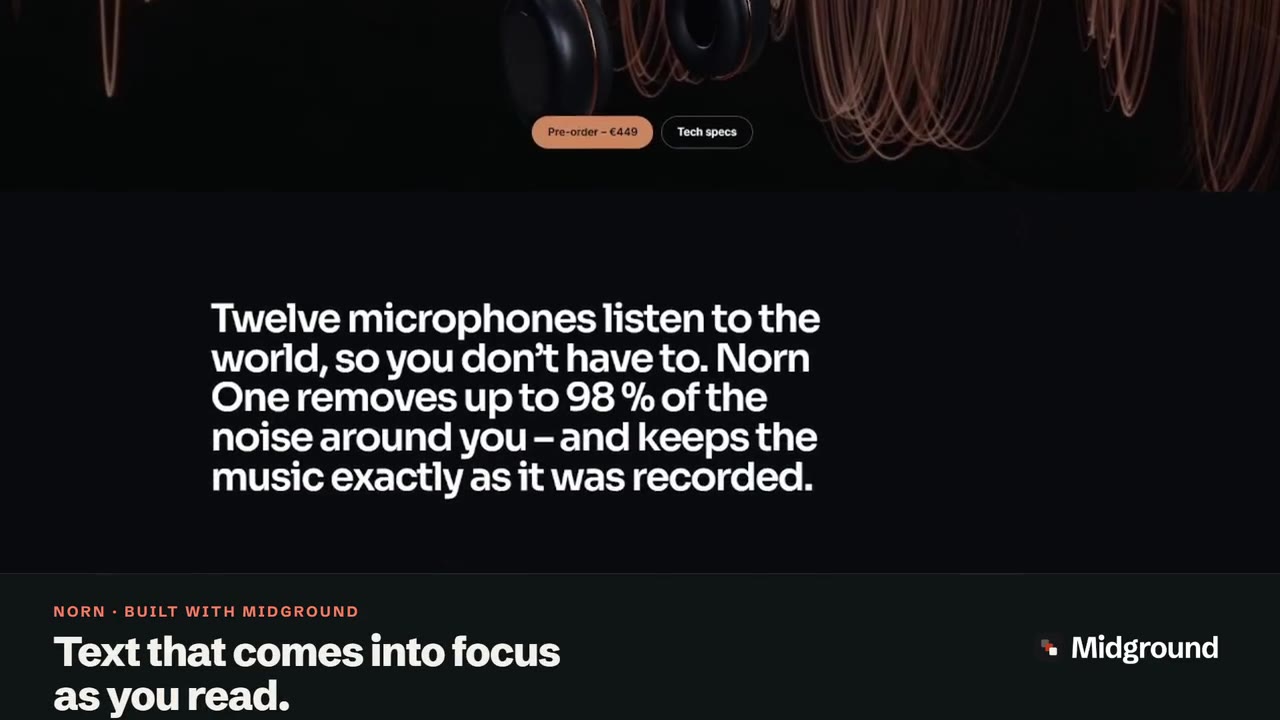
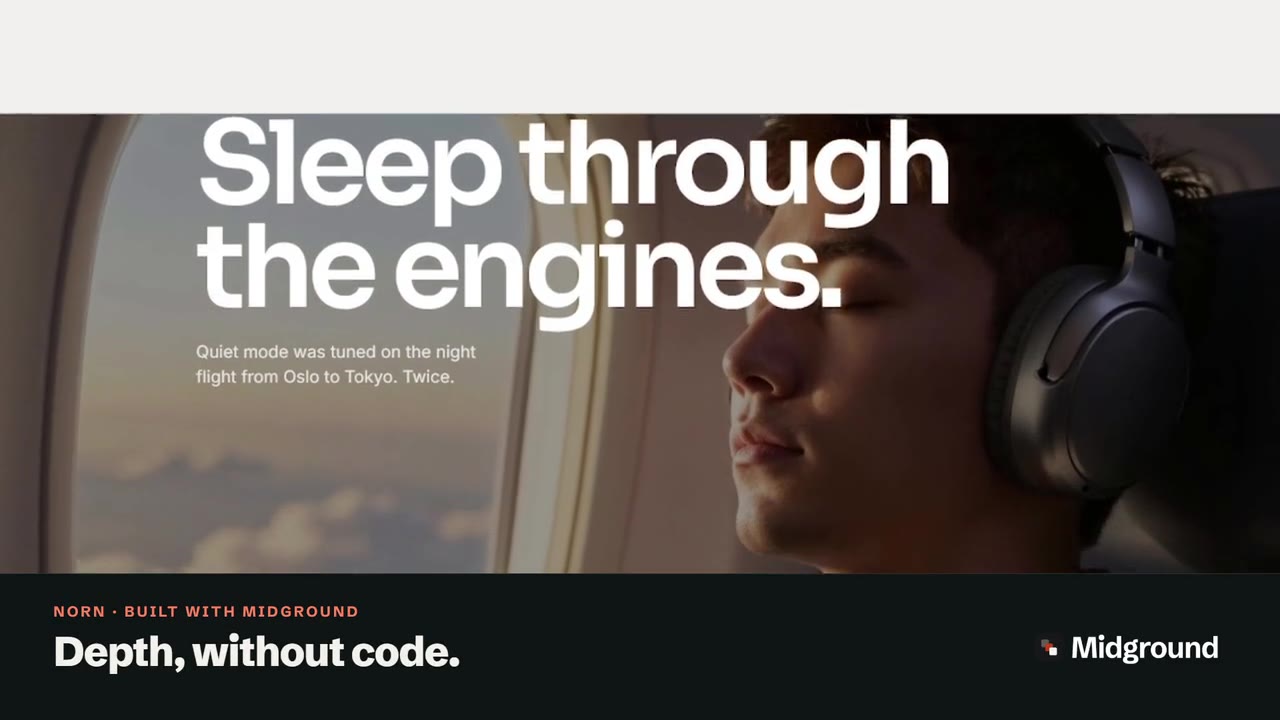
The front page of the Norn demo scrolls, and the graphite Norn One headphones turn in 3D as it moves. Caption: “3D that turns as you scroll.” Then: “Real 3D. No code.” The clip cuts to the WordPress Pages screen with the caption “Yes, this is WordPress.” and ends on a card: “Try it in your browser – midgroundwp.com/try”.
What you need: a GLB file
GLB or glTF? (And why not OBJ or FBX)
glTF is an open standard for 3D on the web; GLB is its binary form, with the geometry, materials and textures in one file. Midground takes .glb files and self-contained .gltf files, and checks each upload: it must be complete glTF 2.0 and must not point to other files. If it isn’t, the upload stops and says why.
OBJ, FBX and other formats aren’t accepted. Import them into Blender and choose File → Export → glTF 2.0, format glTF Binary (.glb).
Make the file small: under 2 MB
Visitors download the whole file before the model appears, so aim for under 2 MB, as Midground’s own settings advise. Three things matter most:
- Compress the geometry with meshopt or Draco. Midground reads both; the meshopt decoder is built in, while Draco’s is an extra download the first time a Draco model loads.
- Keep textures at 2048 pixels or less. A 4K texture has four times the pixels of a 2K one.
- Use WebP or JPEG textures, not KTX2. Midground’s viewer can’t read KTX2, so a model that needs it shows its poster instead.
glTF Transform does all three: gltf-transform optimize model.glb model-web.glb --texture-compress webp (install it with npm install --global @gltf-transform/cli) uses meshopt and limits textures to 2048 pixels. In gltfpack, use -cc and -tw, not -tc, which makes KTX2.
How to add a 3D model in Midground
Step 1: Add the 3D model element
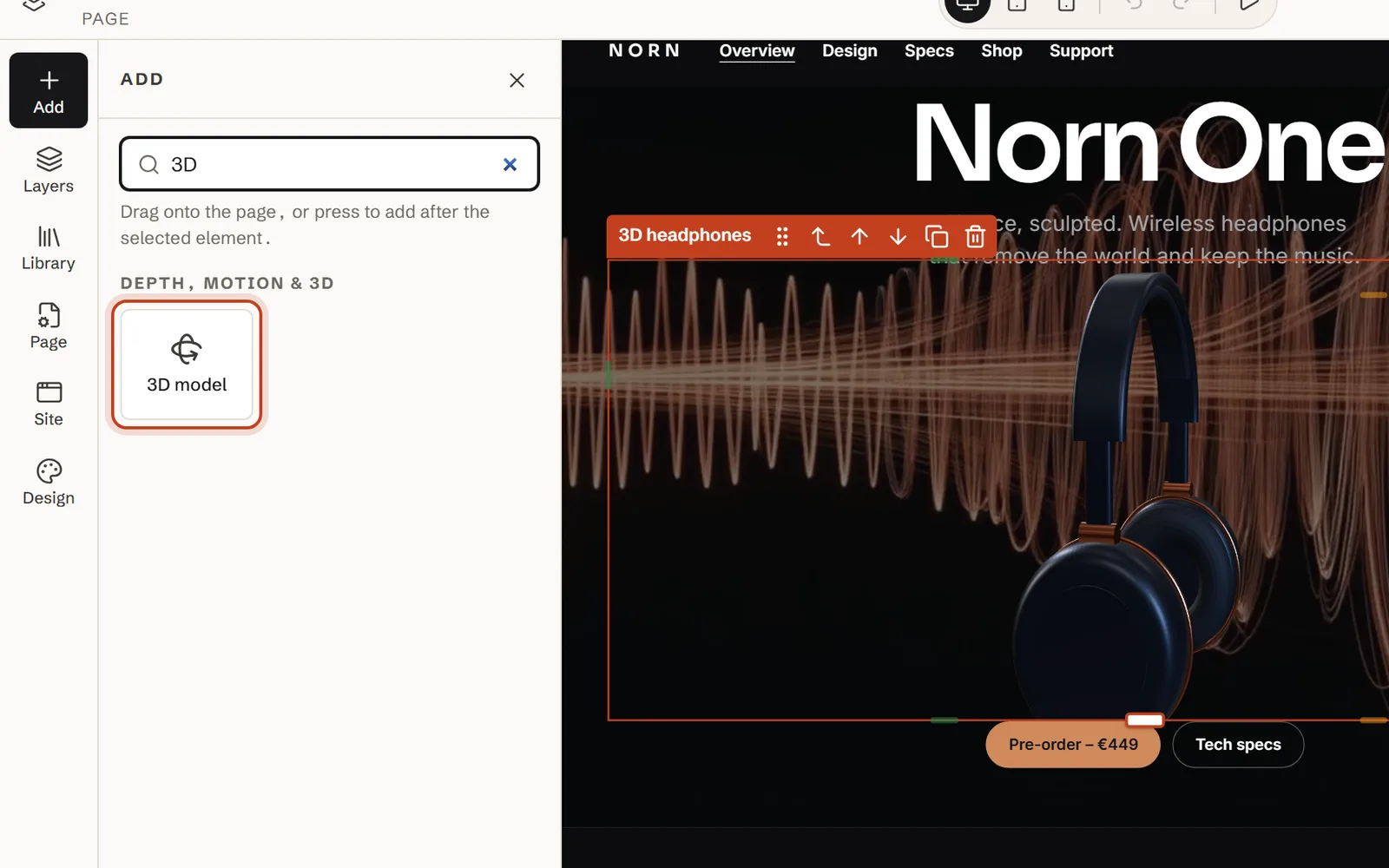
In the Midground editor, open Add and drag 3D model from Depth, motion & 3D onto the page – or click it to add it after the selected element.
Step 2: Upload the GLB to the media library
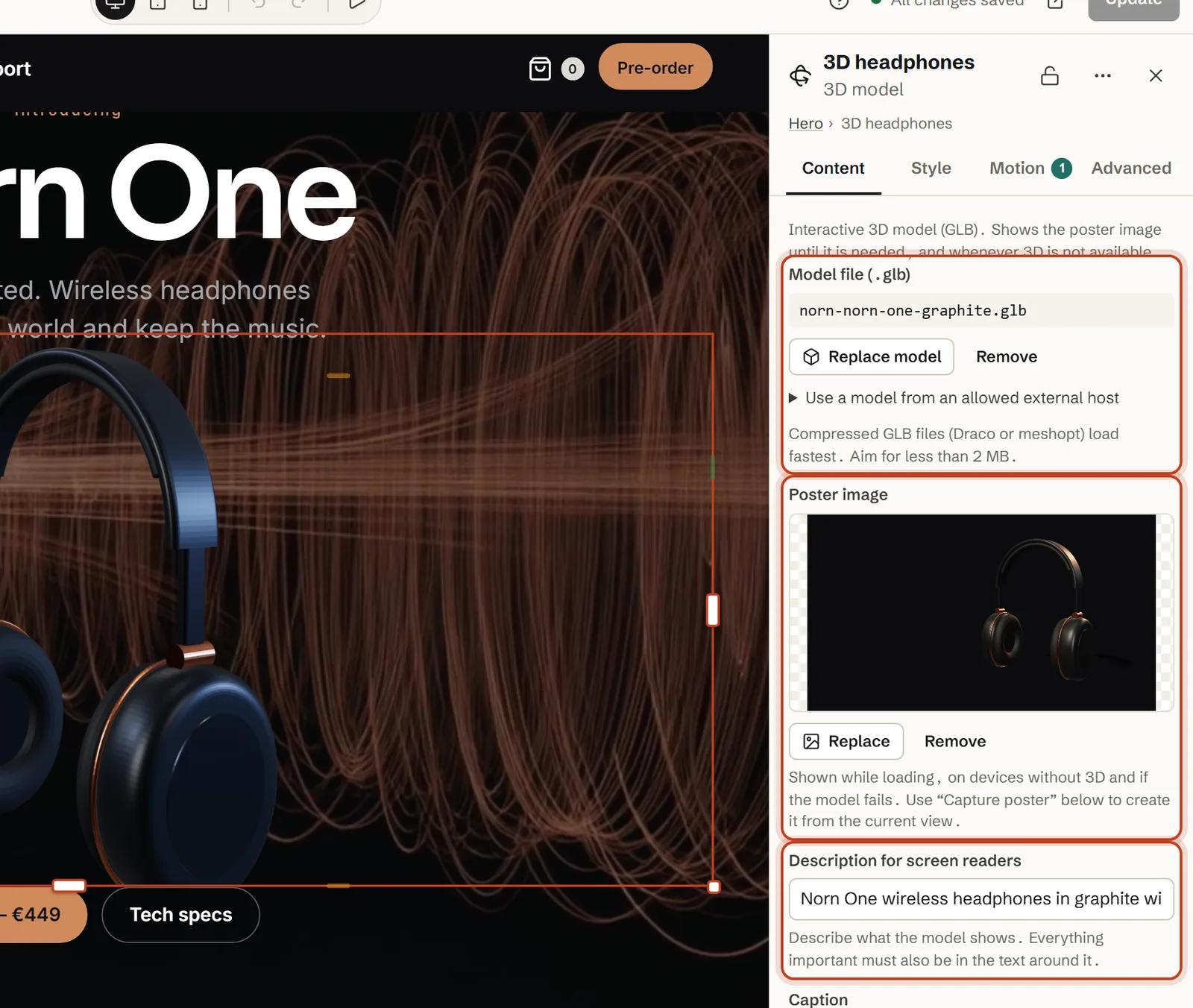
In the Content settings, click Choose or upload .glb under Model file (.glb): the media library opens with only 3D models in it, so drop your file in and select it.
Step 3: Set the camera and the light
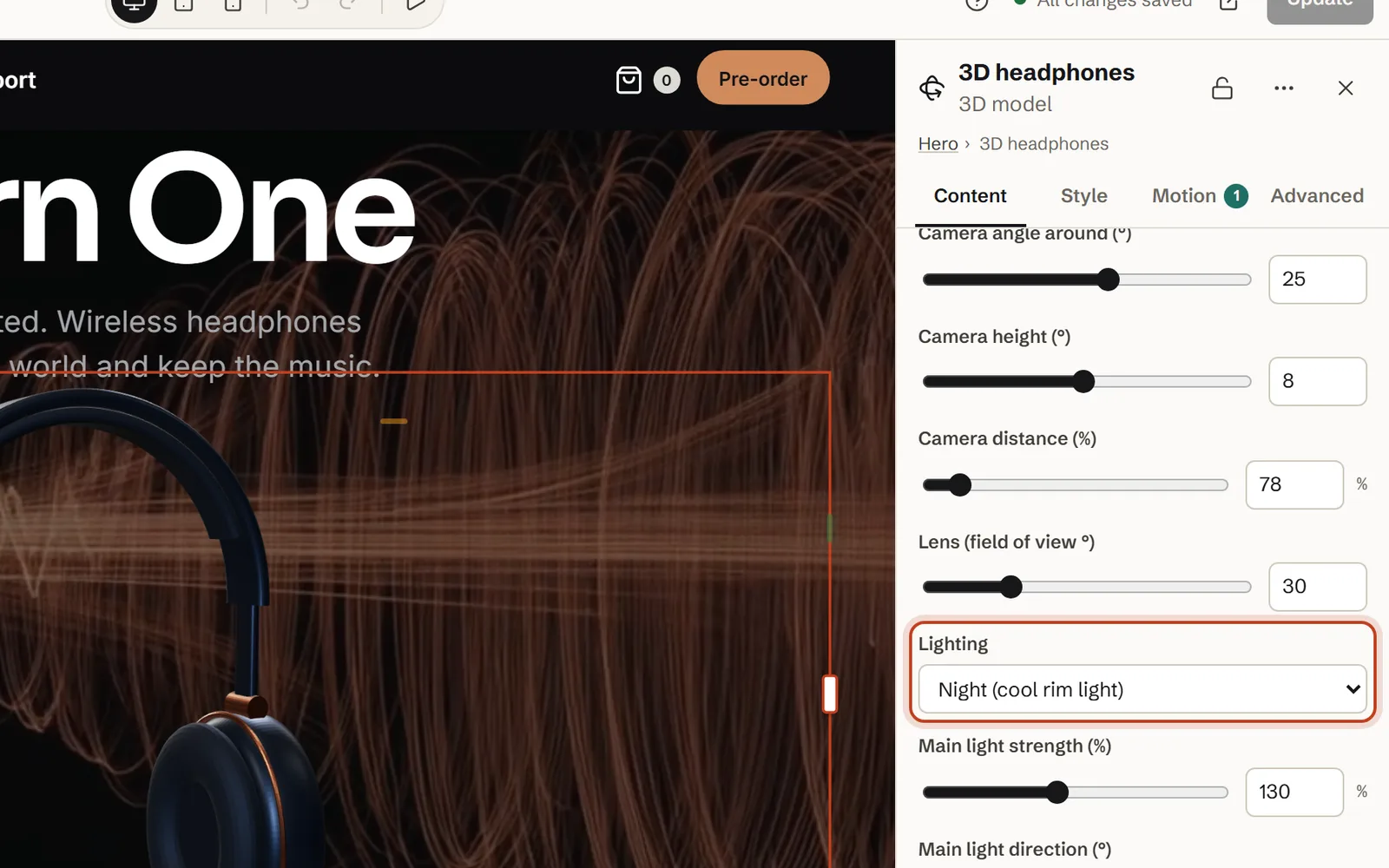
Choose the side you see with Camera angle around (°) and Camera height (°), move in or out with Camera distance (%), and pick one of the five Lighting set-ups – our demo uses Night (cool rim light) on a dark section.
Step 4: Make it turn as visitors scroll
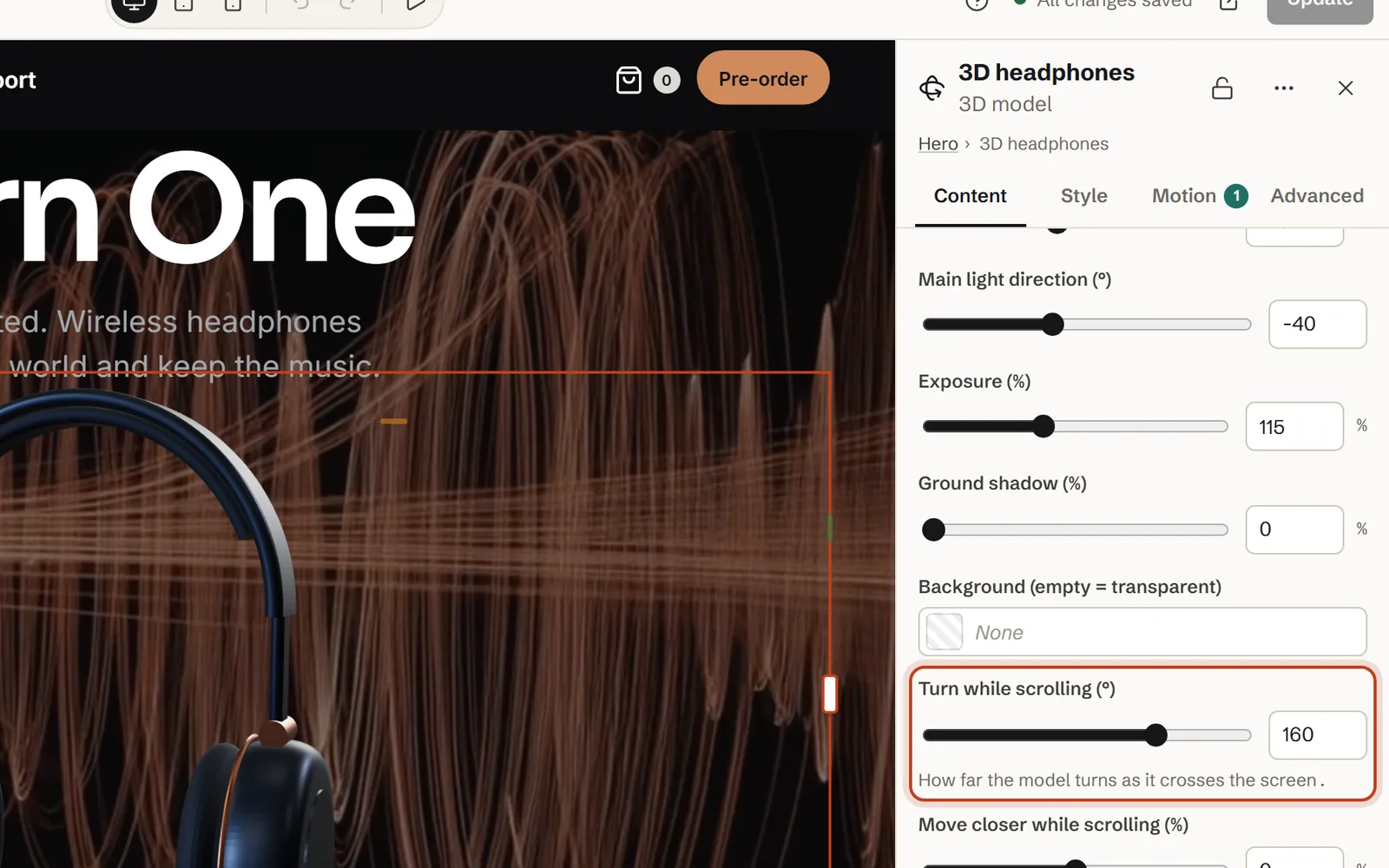
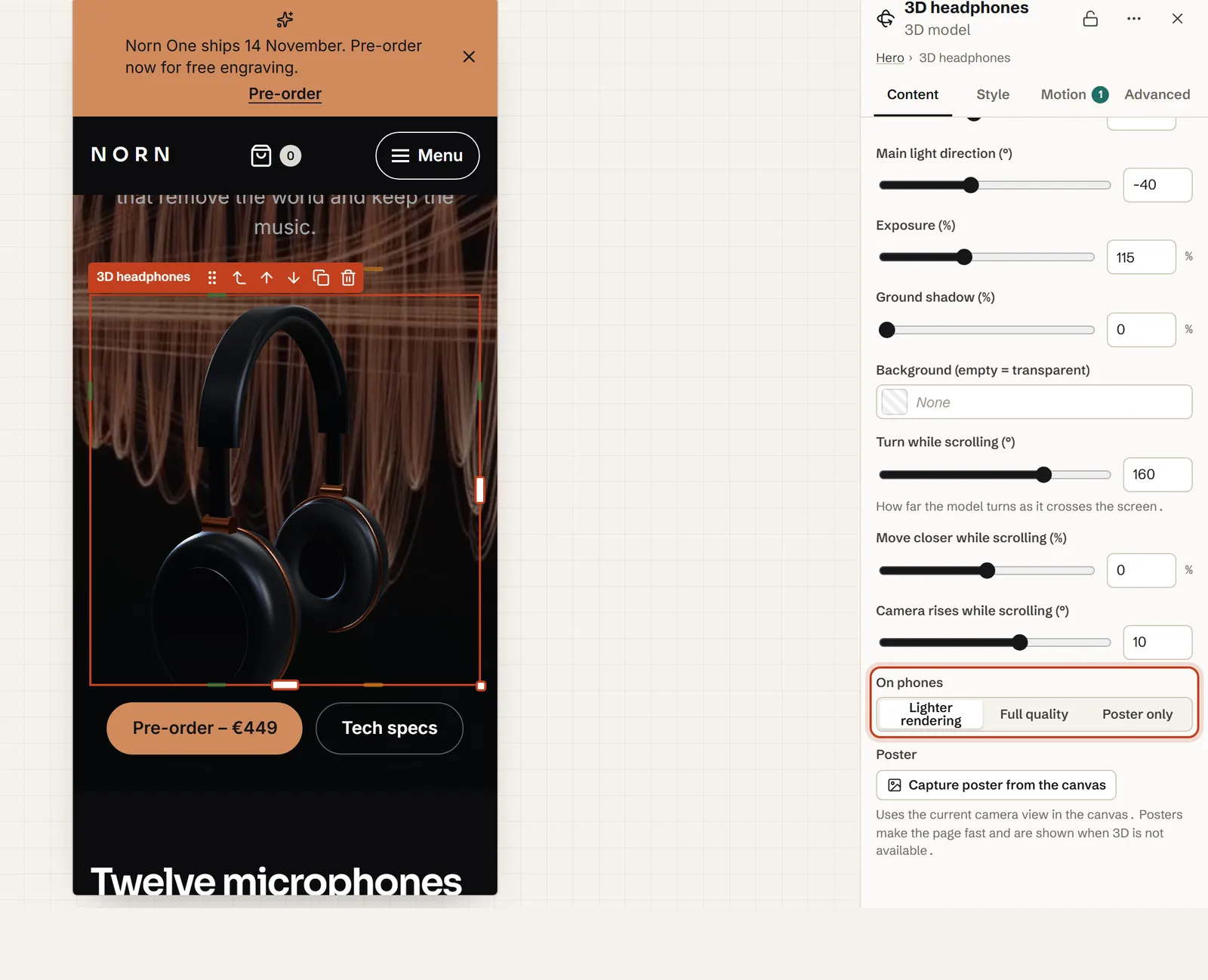
Set Turn while scrolling (°) – 160° in our demo – and, if you like, Camera rises while scrolling (°) and Move closer while scrolling (%). The model follows the visitor’s scroll and never holds the page – a staple of Apple-style scroll pages in WordPress.
Step 5: Let visitors drag – and zoom if you like
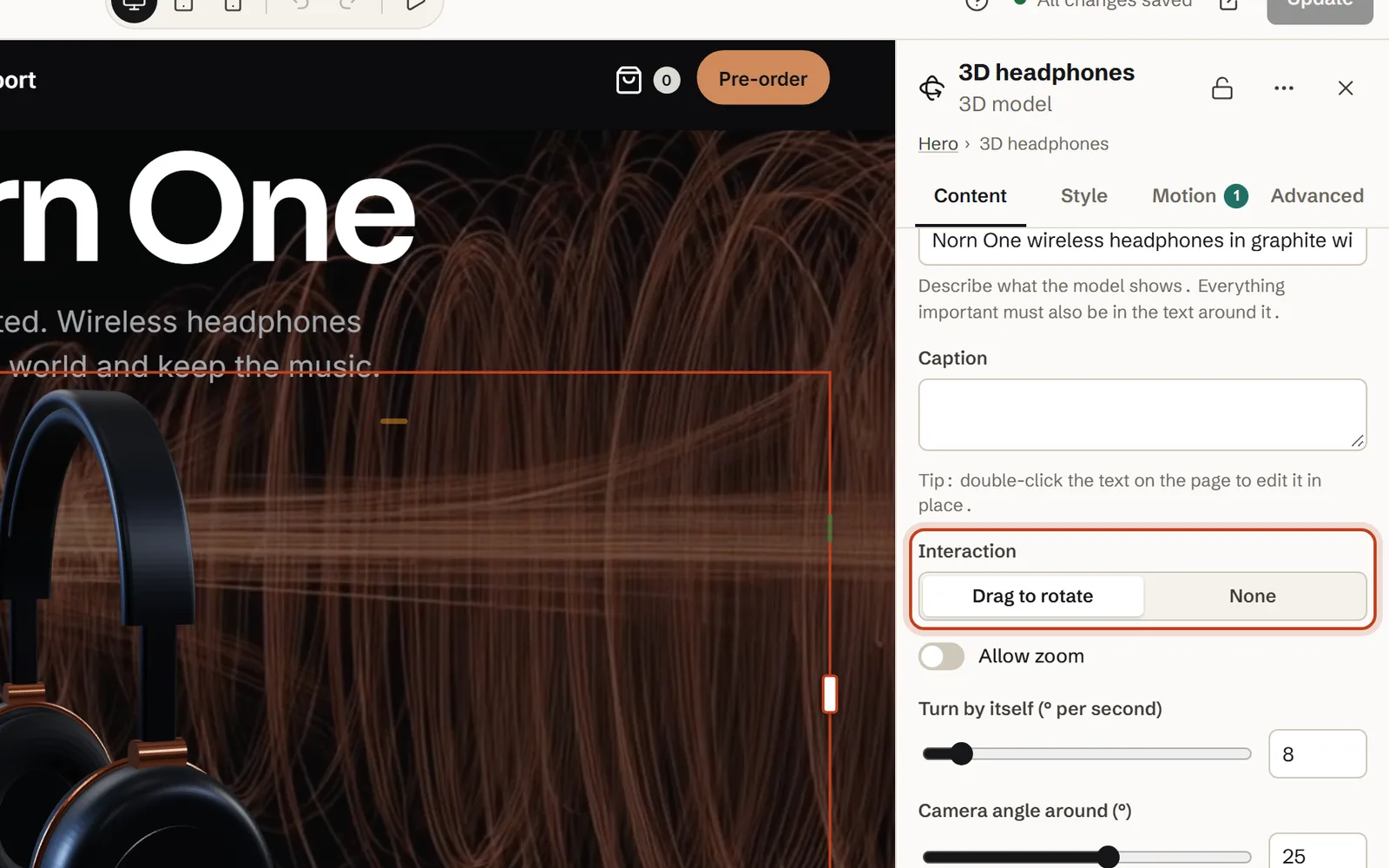
Interaction is Drag to rotate by default; say so in a Caption such as “Drag to turn”, and turn on Allow zoom only where it helps – more on that below.
Step 6: Capture the poster and describe the model
Choose a Poster image, or set up the view and click Capture poster from the canvas at the end of the settings, which saves the current view to the media library. Then fill in Description for screen readers – ours is “Norn One wireless headphones in graphite with copper details.”
Step 7: Choose what phones get
Keep On phones on Lighter rendering, the default, and give phones their own Aspect ratio in the Style tab – our demo goes from 21:9 on a computer to 1:1 on a phone, so the model stays big.
Before you publish: a 3D checklist
- A GLB under 2 MB, compressed, with textures of 2048 pixels or less.
- A poster that works on its own.
- A description, and the key facts in the text beside the model.
- Motion from the scroll; any turn of its own slow, or off.
- Tested on a touch screen and with Preview with reduced motion in the editor.
The settings, explained
| Setting | What it does | In our demo |
|---|---|---|
| Model file (.glb) | glTF 2.0: a .glb, or a self-contained .gltf | norn-one-graphite.glb, about 0.7 MB |
| Poster image | Shown while loading, without 3D and if the model fails – and to search engines | A still render of the model (norn-hero.jpg) |
| Description for screen readers | The 3D view’s name and the poster’s alternative text | “Norn One wireless headphones in graphite with copper details.” |
| Interaction · Allow zoom | Drag to rotate or None · zoom on or off | Drag to rotate · off |
| Turn by itself (° per second) | A slow turn of its own (0–90) | 0 on this page (8 on the Norn demo) |
| Camera angle around (°) · Camera height (°) · Camera distance (%) · Lens (field of view °) | The view with the model in the middle of the screen | 25° · 8° · 78 % · 30° |
| Lighting · Main light strength (%) · Exposure (%) · Ground shadow (%) | Five set-ups, then fine-tuning | Night (cool rim light) · 130 % · 115 % · 0 % |
| Turn while scrolling (°) | The whole turn across the screen (−360 to 360) | 160 |
| Move closer while scrolling (%) · Camera rises while scrolling (°) | A push in and a lift with the scroll | 0 % · 10° |
| On phones | How screens under 768 pixels draw the model | Lighter rendering |
An overview of the element is in 3D models in the user guide.
Camera, lens and light
The viewer stands the model on the ground, centres it and frames all of it: with Camera distance (%) at 100, you see the whole model. Lens (field of view °) changes the perspective, not the size – low values look like a long product-photo lens. The lighting is built in, with no image to download, and an empty Background (empty = transparent) lets whatever is behind show through: a colour, a photo or layers at real depth.
How “Turn while scrolling” is measured
The angles you set are the view with the model in the middle of the screen, and the turn is spread evenly over its trip across: with 160°, it starts 80° before that view as the model appears at the bottom, and ends 80° past it as the model leaves at the top. The lift works the same way – from −5° to +5° in our demo.
A model near the top of a page is on screen from the start, so visitors begin part-way through the turn. Check that first view before you publish.
Zoom, and the turn of its own
With Allow zoom on, the mouse wheel zooms only while the visitor holds Ctrl (⌘ on a Mac) or after they have clicked or tabbed to the model; otherwise it scrolls the page. On a model as wide as ours, leave it off: after a drag, the wheel would zoom the model instead of scrolling the page while the pointer is over it.
Turn by itself (° per second) pauses while someone drags and carries on from where they let go – but read the accessibility note before you use it.
A 3D product viewer on a WooCommerce product page
With WooCommerce active, give the product its own Midground product template. In Midground → Templates, start a new Product template and build the page with a 3D model section. Under Where it is shown, add a rule – Show on, All Products – and pick the product under Only this product. Choose Save conditions and publish: a rule for one product beats a rule for all of them, so this template wins over your general one.
Folk & Flint, one of the four demo sites, does this for six products, from the Tide vase to the Still stool – one template each, since the model file belongs to the template. The shop, cart and checkout stay WooCommerce: see WooCommerce in the user guide.
On phones and tablets
On a touch screen, a swipe over the model scrolls the page, so the model never traps a thumb. To turn it, visitors tap Rotate the 3D model in the top-right corner; the button then reads Stop rotating, and swipes turn the model until they tap it again. With Allow zoom on, a pinch zooms while rotating is on.
The scroll turn works on every screen. On phones applies below 768 pixels – Lighter rendering draws at a lower resolution without edge smoothing, Full quality as on a computer – so tablets get full quality. On any device, the viewer watches its own speed: after a few slow frames it lowers the resolution, and if that isn’t enough, it stops turning by itself.
Accessibility: description, keyboard and reduced motion
With Drag to rotate on, the 3D view is a named group that takes keyboard focus: screen readers hear the description, and the canvas is hidden from them. Put everything important in the text beside the model too – sizes, colours, what’s in the box.
Keyboard users Tab to the model and turn it with the arrow keys (Shift for bigger steps); with Allow zoom on, + and − zoom. A hidden hint tells screen-reader users the keys. If 3D isn’t available or the model fails to load, a status note says so and the poster stays.
Visitors who ask for reduced motion get a model that stays still – no turn of its own, nothing with the scroll – while dragging and the arrow keys still work. Everyone does when Site-wide motion under Design is set to Reduced for all or Off.
One honest limit: Turn by itself (° per second) has no pause button in Midground 1.2.0, and WCAG 2.2 success criterion 2.2.2 asks for a way to pause or stop anything that moves by itself for more than five seconds beside other content. The Norn demo turns at 8° per second; on this page we set it to 0, so the headphones move only when you scroll or drag them. If your page must meet WCAG, do the same and let Turn while scrolling (°) do the work.
Performance: what 3D costs, and when it loads
Midground’s own script is about 12.5 KB of JavaScript (compressed) on our demo, and the 3D viewer about 170 KB compressed (measured on 4 October 2026). The viewer and the model load only when a model comes within about 300 pixels of the screen, and only with WebGL 2; pages without a 3D model load none of it. On this page the demo sits near the top, so both load early.
After that, the model is drawn only when something changes – a drag, the scroll or its own turn – and not at all while it is off screen or the tab is hidden.
For Largest Contentful Paint, the loading score in Core Web Vitals, the poster is what counts: browsers can pick an image, never a canvas, so a model at the top of a page is usually judged by its poster. On our Norn demo, WordPress loads it with high priority. A captured PNG poster is often heavier than a JPEG or WebP of the same view.
Common mistakes (and fixes)
“Sorry, you are not allowed to upload this file type”
That is WordPress refusing a .glb, as it does without Midground. With Midground active, the file is probably in another format – .obj, .fbx or .usdz – so convert it to GLB first.
“This .gltf file uses separate .bin or texture files”
The media library keeps each file on its own, so a .gltf that points to others can’t work. Export again as glTF Binary (.glb). A .glb that refers to outside files is refused too.
The model is dark, tiny or off-centre
Dark: Night and Dusk are dark on purpose – try Studio or Soft daylight, or raise Main light strength (%) or Exposure (%). Tiny or off-centre: the viewer frames everything in the file, so a forgotten floor plane or helper object shrinks the model and pushes it aside. Delete it in Blender and export again.
It loads slowly
Check the file size first – compress the geometry, shrink the textures, use WebP. A model at the very top of a page starts loading at once, so there the poster carries the first view.
A model from another website won’t load
An administrator must add the host under Midground → Settings → Allowed external model hosts; then paste the address under Use a model from an allowed external host in the element. The file must come over HTTPS with CORS enabled, or visitors only see the poster.
It doesn’t turn inside a pinned scene
Turn while scrolling (°) follows the model’s trip across the screen, and in a pinned scene the model holds still along with the scene. Place it outside the scene, or let visitors drag it. How scenes work: a pinned scene in steps.
Let an AI agent build it
You can also let an AI agent build it: from Midground 1.2, Claude Code, Cursor, Codex and other MCP clients can build pages through the WordPress MCP Adapter. Upload the GLB and the poster first – the agent picks files from the media library but doesn’t upload them.
Prompt for your AI agent
Using Midground, add a 3D model section to the page “Norn One” with norn-one-graphite.glb from the media library and norn-hero.jpg as the poster. Drag to rotate, turn 160° while scrolling, Night lighting, the description “Norn One wireless headphones in graphite with copper details.” and lighter rendering on phones. Show me a preview before you publish.
The code way: three.js or <model-viewer> with ScrollTrigger
Without a builder, the usual route is three.js and GSAP’s ScrollTrigger – load the GLB with GLTFLoader and tie its rotation to the scroll:
import { GLTFLoader } from 'three/addons/loaders/GLTFLoader.js';
import { gsap } from 'gsap';
import { ScrollTrigger } from 'gsap/ScrollTrigger';
gsap.registerPlugin( ScrollTrigger );

// renderer, scene, camera and lights set up as usual, then:
new GLTFLoader().load( '/wp-content/uploads/model.glb', ( gltf ) => {
  scene.add( gltf.scene );
  renderer.render( scene, camera );
  gsap.to( gltf.scene.rotation, {
    y: Math.PI,
    ease: 'none',
    onUpdate: () => renderer.render( scene, camera ),
    scrollTrigger: { trigger: '#model', start: 'top bottom', end: 'bottom top', scrub: true },
  } );
} );
Google’s <model-viewer> is the other route: it brings a poster, lazy loading, camera controls and AR, and you set its camera-orbit from your own scroll listener. With three.js, the rest is yours: loading it in WordPress, framing, resizing, lazy loading, a poster and a fallback without WebGL, touch, the keyboard and reduced motion.
Questions about 3D models in WordPress
Can WordPress show 3D models?
Not on its own: WordPress has no 3D viewer and blocks .glb uploads (“Sorry, you are not allowed to upload this file type”). Midground’s 3D model element allows the upload, checks that the file is valid glTF 2.0 and shows it.
Do I need a 3D model viewer plugin?
Not with Midground: its 3D model element is the viewer. It allows the .glb upload, checks the file, shows it with built-in lighting and adds dragging, the scroll turn and a poster. Without it, WordPress needs a plugin – it has no 3D block of its own.
GLB or glTF – which file should I use?
GLB: one file with the geometry, materials and textures inside. A .gltf that points to separate .bin or image files won’t work. In Blender, export as “glTF Binary (.glb)”.
How big can the model be?
Aim for under 2 MB: compress the geometry with meshopt or Draco and keep textures at 2048 pixels or less, in WebP or JPEG rather than KTX2. Midground’s upload limit is 25 MB by default (Midground → Settings), but smaller always loads faster.
Will a 3D model slow down my page?
Not before it is needed. The viewer loads only when the model comes near the screen, the poster shows until then, and the model is redrawn only when something changes. Its file size matters most.
What do visitors without WebGL, or on a slow phone, see?
Without WebGL 2, they see the poster with a short note. On phones, Lighter rendering draws at a lower resolution, and on any device the viewer lowers its resolution, then stops turning by itself, if frames get slow.
Does it work with WooCommerce?
Yes. Give a product its own Midground product template with a 3D model section – our shop demo, Folk and Flint, does this for six products, from a vase to a stool. The shop, cart and checkout stay WooCommerce.
Can visitors see the model in AR?
Not with Midground’s 3D element: it shows the model on the page, not in augmented reality. If you need AR – Quick Look on iPhone, Scene Viewer on Android – use a dedicated AR viewer for those products.
About the author. Pelle Nilsen makes Midground – a solo developer in Norway. Every demo in this guide was built in the same editor you can open in your browser. Questions or corrections: hello@midgroundwp.com. More about Midground.
Take this demo apart in your browser
Remix opens the editor with a full copy of the Norn demo site, in your browser – no sign-up, nothing to install. Change the settings from this guide and watch what happens.
More guides